4. The User Interface
Every page follows the same layout.
The Screen#
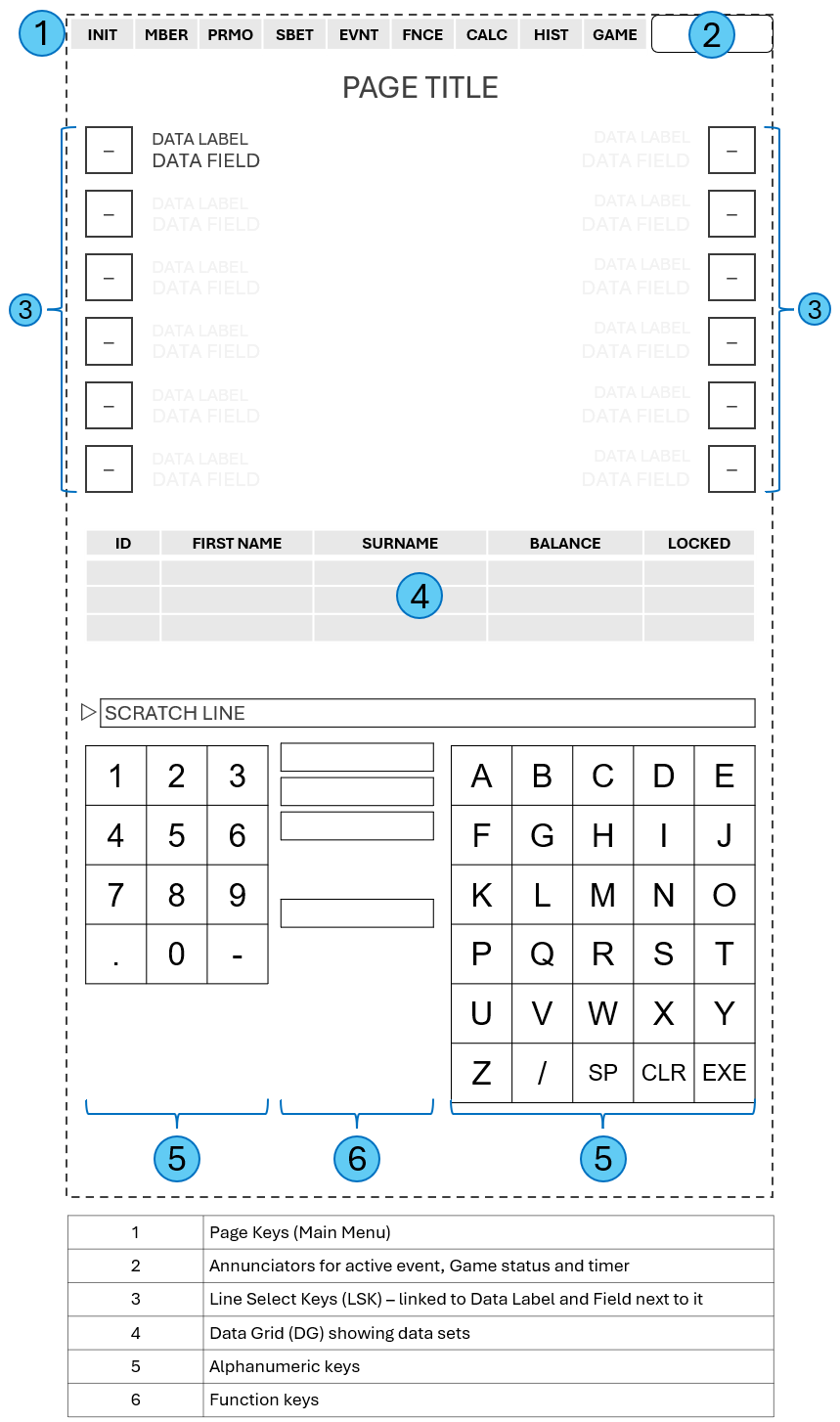
The drawing shows the parts that every page is built from. Its numbers match the numbers in the legend beside it. Real pages use the same arrangement, but with other data fields, buttons, and data grids.
Keys, Buttons, Pages, and Sub Pages#
This manual uses four terms consistently:
| Term | Meaning |
|---|---|
| Key | Something you press to enter or select: the page keys in the menu bar, the line select keys (LSK) beside the data fields, and the alphanumeric keys of the on-screen keyboard. |
| Button | Something you press to trigger an action, such as NEW MEMBER*. Buttons carry the symbol <> before their labels and sit between the numeric and the alphabetic keys. |
| Page | One of the areas in the menu bar: INIT, MBER, PRMO, SBET, EVNT, FNCE, CALC, HIST, GAME, and SIGN. You open a page with its page key. |
| Sub page | A page that opens from a page, usually with a button, for example POS OF PLAYERS. You leave it with RETURN. |
Parts of a Page#
Every page is built from the same parts:
| Part | Where | What it does |
|---|---|---|
| Page keys | Menu bar at the top | Open the pages of the software. |
| Data fields | Below the page title | Display the values of the selected record, such as a name, a date, or an amount. |
| Line select keys (LSK) | Along the left and right edges, beside the data fields | Each LSK belongs to the data field or setting beside it. It either transfers the value from the ScratchLine into that data field or toggles a setting. |
| Data grids (DG) | Main area of the page | List records such as members, events, or transactions. Tap a row to select it. |
| ScratchLine | Above the alphanumeric keys | Displays what you type before it is entered into a data field. |
| Buttons | Between the numeric and the alphabetic keys | Trigger an action directly, for example NEW MEMBER*, OPEN CHECKLIST, or a print button. |
| Alphanumeric keys | On-screen keyboard | Letters, numbers, SP (space), ., -, /, CLR, and EXE. CLR and EXE have special functions, described below. |
Not every page uses every part. The INIT pages, for example, are operated mainly with line select keys.
Page Keys#
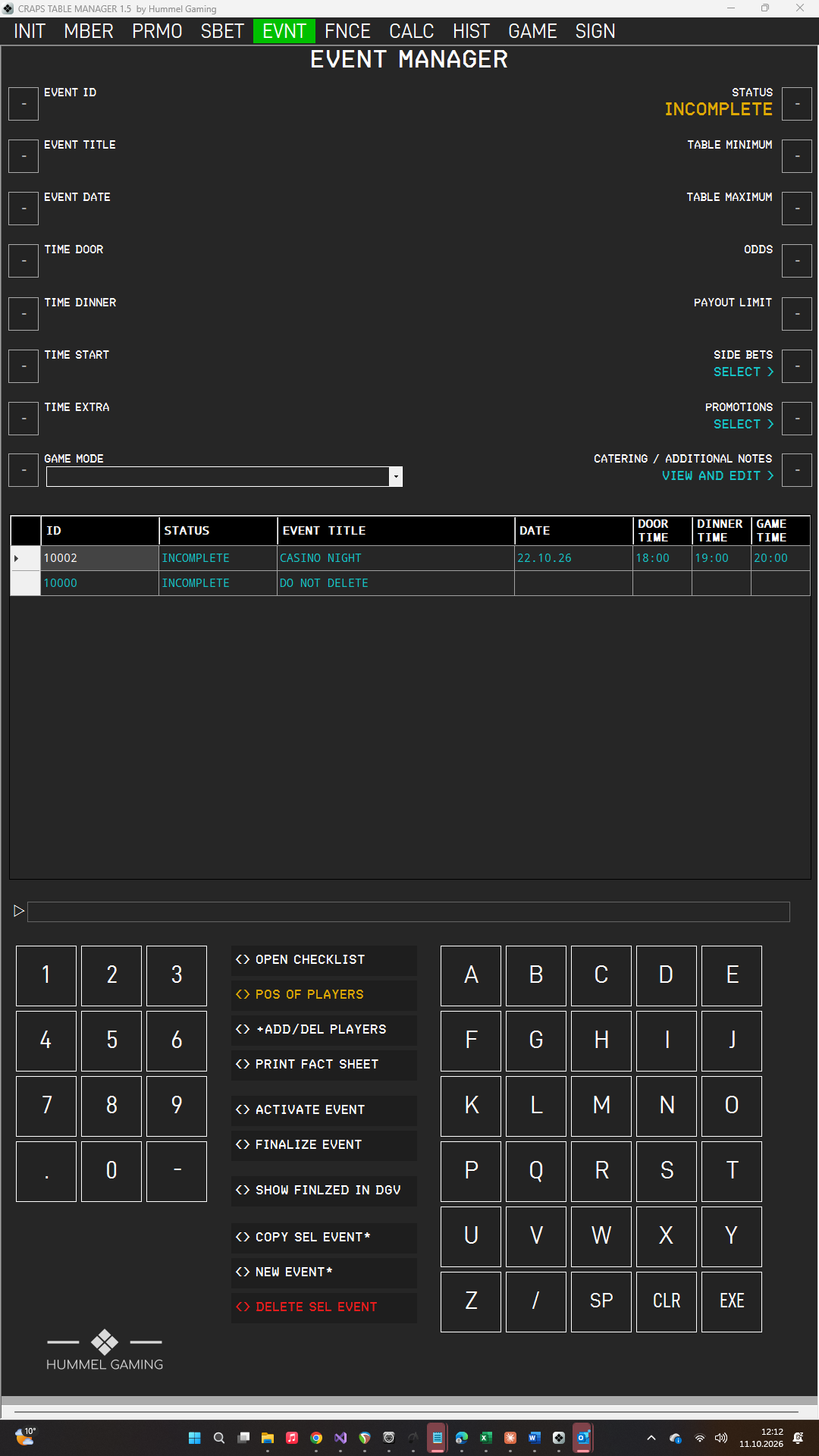
The page keys in the menu bar provide access to every area of the software:
| Menu | Area |
|---|---|
| INIT | Settings |
| MBER | Members |
| PRMO | Promotions |
| SBET | Side Bets |
| EVNT | Events |
| FNCE | Finance (play-money bankroll) |
| CALC | Payout Calculator |
| HIST | History and Statistics |
| GAME | In-Game Dashboard |
| SIGN | Digital Signage (Pro) |
The active page is highlighted in green.
The ScratchLine and Line Select Keys#
You do not type directly into data fields. Instead:
- Enter your data with the alphanumeric keys. It appears in the ScratchLine above the keys.
- Press the LSK next to the data field you want to fill. The value moves from the ScratchLine into the data field.
If a value has the wrong format, such as an invalid date, the ScratchLine displays FORMAT ERROR, and the data field retains its previous value.
The CLR Key#
CLR (clear) behaves differently depending on what the ScratchLine contains:
| ScratchLine shows | Pressing CLR … |
|---|---|
| Text you typed | deletes your input. |
| Nothing | shows the word CLR in the ScratchLine. |
| A confirmation prompt | cancels the action. Nothing is changed. |
Emptying a data field: With CLR displayed in the ScratchLine, press the LSK next to a data field to empty it.
Good to know: An empty ScratchLine never changes a data field. If you press an LSK by mistake while the ScratchLine is empty, nothing happens.
The EXE Key#
EXE (execute) serves two purposes:
1. Saving. Wherever a page has an EXE key, press it to save your changes, for example a new member, an event, or a transaction.
2. Confirming. Actions that cannot easily be undone, such as deleting, activating, or finalizing, first ask for confirmation in the ScratchLine:
*CONFIRM? --> EXE / CANCEL WITH CLR
Press EXE to carry out the action, or CLR to cancel it.
Annunciators#
The annunciators on the right side of the menu bar show the current state of CTM:
| Annunciator | Meaning |
|---|---|
| EVENT | Green when an event is active; off otherwise. |
| CO | Magenta, blinking: the game is at the come-out roll. |
| PT | Orange, blinking: a point is set. |
| TMR | Green while the game timer is running; blue while an event is active but the timer is stopped; off when no event is active. |
The Print Window#
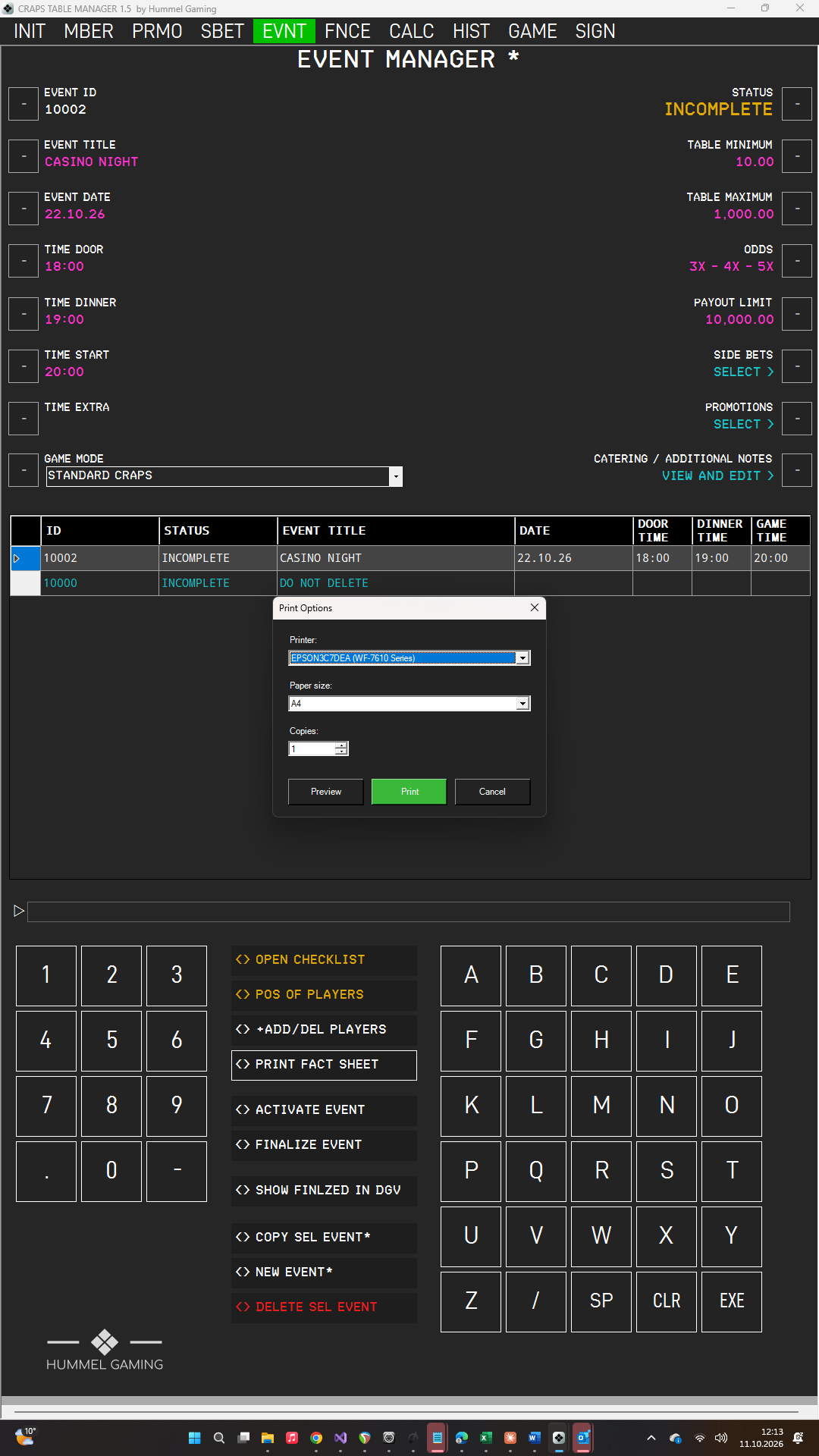
All printouts share the same print window, in which you can:
- choose the printer
- choose the paper size (A4 or Letter)
- set the number of copies
- check the preview before printing
Your company name, location, and header image appear on every printout.
→ See Settings Page 3 – Printouts and Preferences.
Messages and Dialogs#
CTM presents messages, questions, and confirmations in black windows above the current page, with all text in capital letters. Respond with the buttons offered: OK, YES and NO, or RETRY and CANCEL. On a connected keyboard, ESC answers NO or CANCEL where offered.
Wherever an amount is required, for example with ADJUST on the game dashboard, CTM opens a number pad with the keys 0 to 9 and a decimal point. CLR erases your entry, CANCEL closes the pad without changes, and EXE confirms. The pad accepts up to ten digits and two decimal places.