17. Event Status
Every event has a status that shows how far it has progressed, from planning to the end of the evening.
Incomplete, Prepared, Active, Finalized#
| Status | Color | Meaning |
|---|---|---|
| INCOMPLETE | Amber | The event is still being planned, and something is missing: open checklist tasks, no players, or players without a position. |
| PREPARED | Pink | The event is ready: the checklist is complete, the event has at least one player, and every player has a position. |
| ACTIVE | Green | The event is running. Only one event can be active at a time. |
| FINALIZED | Teal | The event is over. |
CTM sets INCOMPLETE and PREPARED by itself. When you save the event with EXE, CTM checks the conditions; if all are met, the status changes to PREPARED. If a prepared event no longer meets them, for example because a player has no position, the status reverts to INCOMPLETE. You set ACTIVE and FINALIZED yourself.
Activating an Event#
Activate the event when you are ready to play.
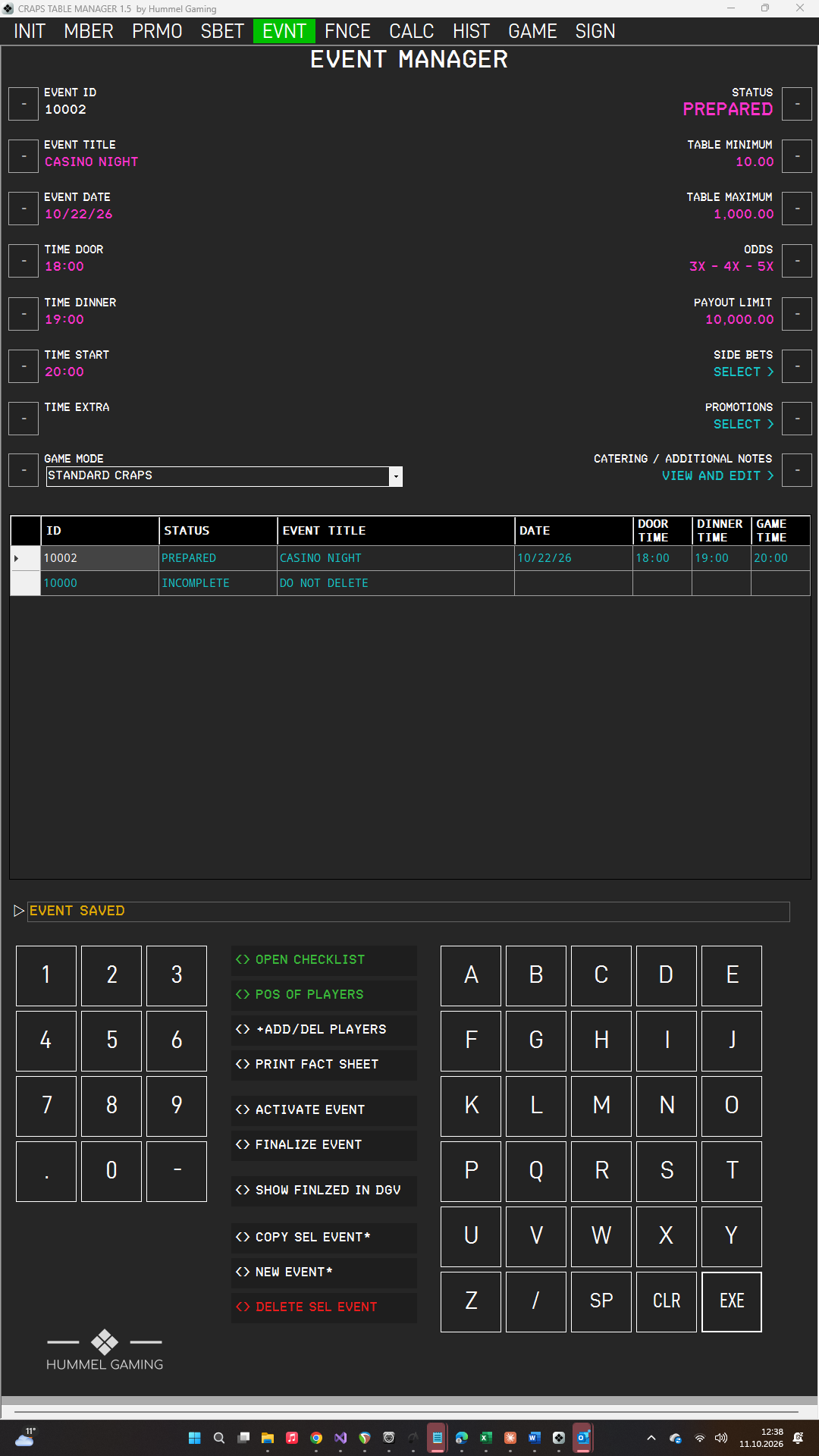
- Tap the event in the DG. Its status must be PREPARED.
- Press ACTIVATE EVENT. The ScratchLine asks for confirmation.
- Press EXE. The EVENT annunciator turns green.
The active event is the one you play. The game dashboard uses its players and position order, Finance offers its players for transactions, and the digital signage shows its table minimum, table maximum, odds, and payout limit.
Finalizing an Event#
Finalize the event when the evening is over. Book the final scores in Finance first, so that the bookings are assigned to the event.
- Tap the event in the DG. Its status must be ACTIVE.
- Press FINALIZE EVENT. The ScratchLine asks for confirmation.
- Press EXE.
Finalizing cannot be undone, and a finalized event cannot be activated again.
Showing Finalized Events#
Finalized events are hidden in the DG so that it shows only your current and upcoming events. Press SHOW FINLZED IN DG to display them; the button then reads HIDE FINLZED IN DG. Press it again to hide them.