10. Members
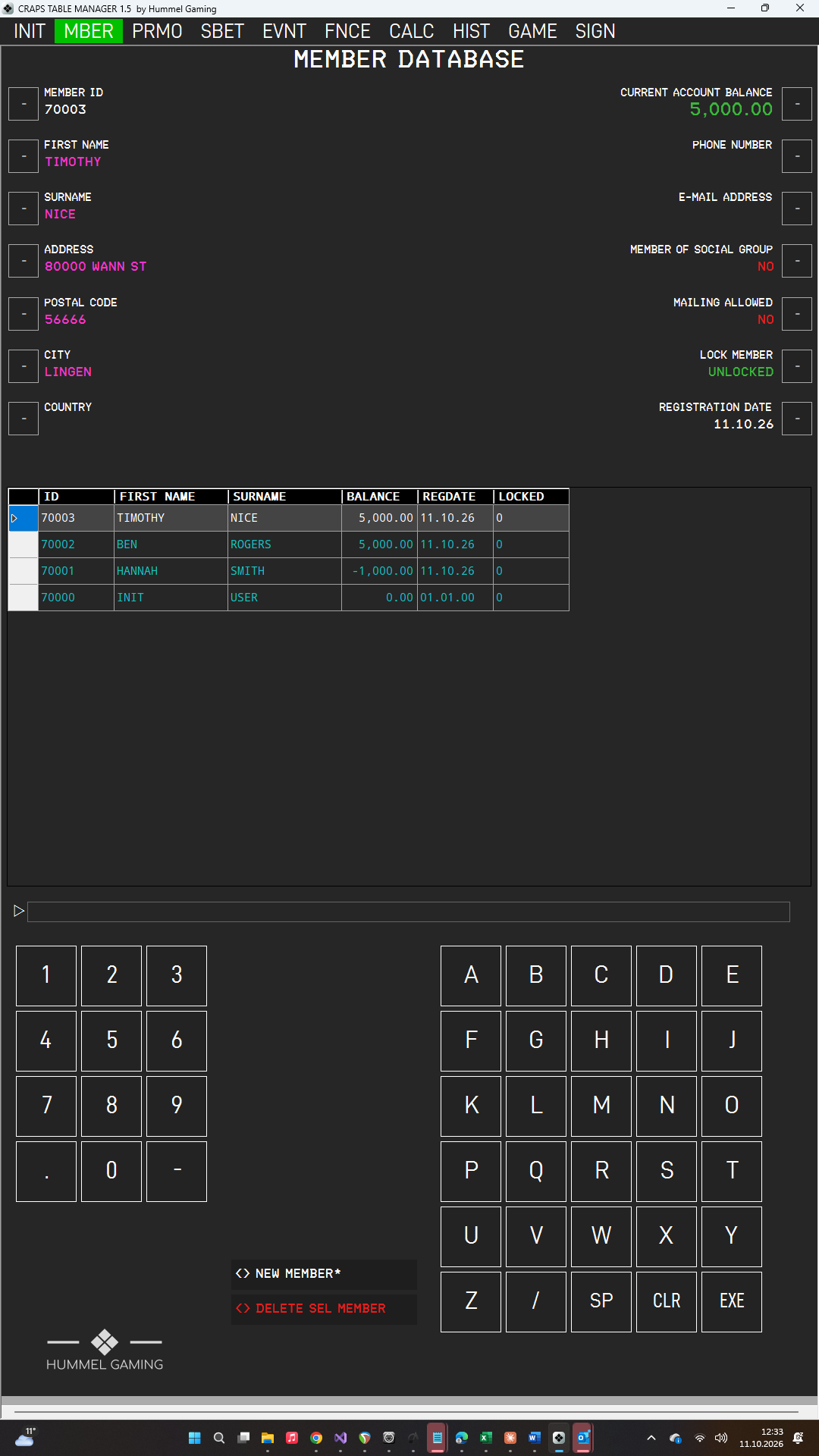
The member database stores your players. You enter each player once and can then use that player in every event. The MEMBER DATABASE page has data fields for the details of the selected member, plus a data grid (DG) that lists all members sorted by surname. The DG columns are ID, FIRST NAME, SURNAME, BALANCE, REGDATE, and LOCKED.
Creating a Member#
- Open MBER and press NEW MEMBER*. CTM clears all data fields, assigns the next free MEMBER ID, and sets the REGISTRATION DATE to today.
- Enter the first name and press the LSK next to FIRST NAME. Do the same for SURNAME.
- Optionally, fill in ADDRESS, POSTAL CODE, CITY, COUNTRY, PHONE NUMBER, and E-MAIL ADDRESS in the same way.
- Press EXE. The member appears in the DG.
The data fields are as follows:
| Data field | What it contains |
|---|---|
| MEMBER ID | Assigned by CTM; you do not need to change it. |
| FIRST NAME, SURNAME | The name as it appears in lists and on printouts. |
| ADDRESS, POSTAL CODE, CITY, COUNTRY | Optional. |
| PHONE NUMBER | Optional. |
| E-MAIL ADDRESS | Optional. The @ sign is explained below. |
| CURRENT ACCOUNT BALANCE | The member's balance. It cannot be changed here. |
| MEMBER OF SOCIAL GROUP | For your own information only; it has no effect on how CTM works. Press the LSK to switch between YES and NO. |
| MAILING ALLOWED | For your own information only, for example to record whether the member agreed to receive invitations; it has no effect on how CTM works. Press the LSK to switch between YES and NO. |
| LOCK MEMBER | LOCKED or UNLOCKED. |
| REGISTRATION DATE | Set automatically when you create the member and displayed in your chosen date format. |
The @ sign in e-mail addresses. The keyboard has no @ key. Type /A/ where the @ belongs, for example JOHN/A/EXAMPLE.COM, and press the LSK next to E-MAIL ADDRESS. CTM converts it to @.
YES/NO and LOCKED/UNLOCKED changes are saved when you press EXE.
Editing a Member#
- Tap the member in the DG. The data fields show the member's details.
- To change a value, type it and press the LSK next to the data field.
- Press EXE.
To empty a data field, press CLR on an empty ScratchLine and then the LSK next to the data field. The member ID and registration date cannot be changed.
Account Balance#
CURRENT ACCOUNT BALANCE and the BALANCE column show the sum of all of the member's transactions in Finance (FNCE). The balance cannot be changed here; to change it, book a transaction in FNCE.
→ See The Play-Money Bankroll.
Locking a Member#
Lock a member who no longer takes part in your events. A locked member disappears from the lists for adding players to an event, for transactions, and for the Promo Wheel. The member's bookings and statistics remain complete, and the member still appears in the filters on the History page.
- Tap the member in the DG.
- Press the LSK next to LOCK MEMBER. The data field toggles between LOCKED and UNLOCKED.
- Press EXE.
The LOCKED column in the DG shows 1 for locked members and 0 for all others. To unlock a member, repeat the same steps.
Deleting a Member#
- Tap the member in the DG.
- Press DELETE SEL MEMBER. The ScratchLine asks for confirmation.
- Press EXE to delete the member or CLR to cancel.
Deleting removes the member from the database. If the member has attended events or has bookings, lock the member instead; this keeps your history and statistics complete.
Important: Do not delete the member INIT USER. It is part of the initial database.