37. Log Files and Getting Support
CTM keeps a log of what it does and of everything that goes wrong. If you contact support, the log usually tells us what happened, so you do not need to describe technical details.
What the Log Contains#
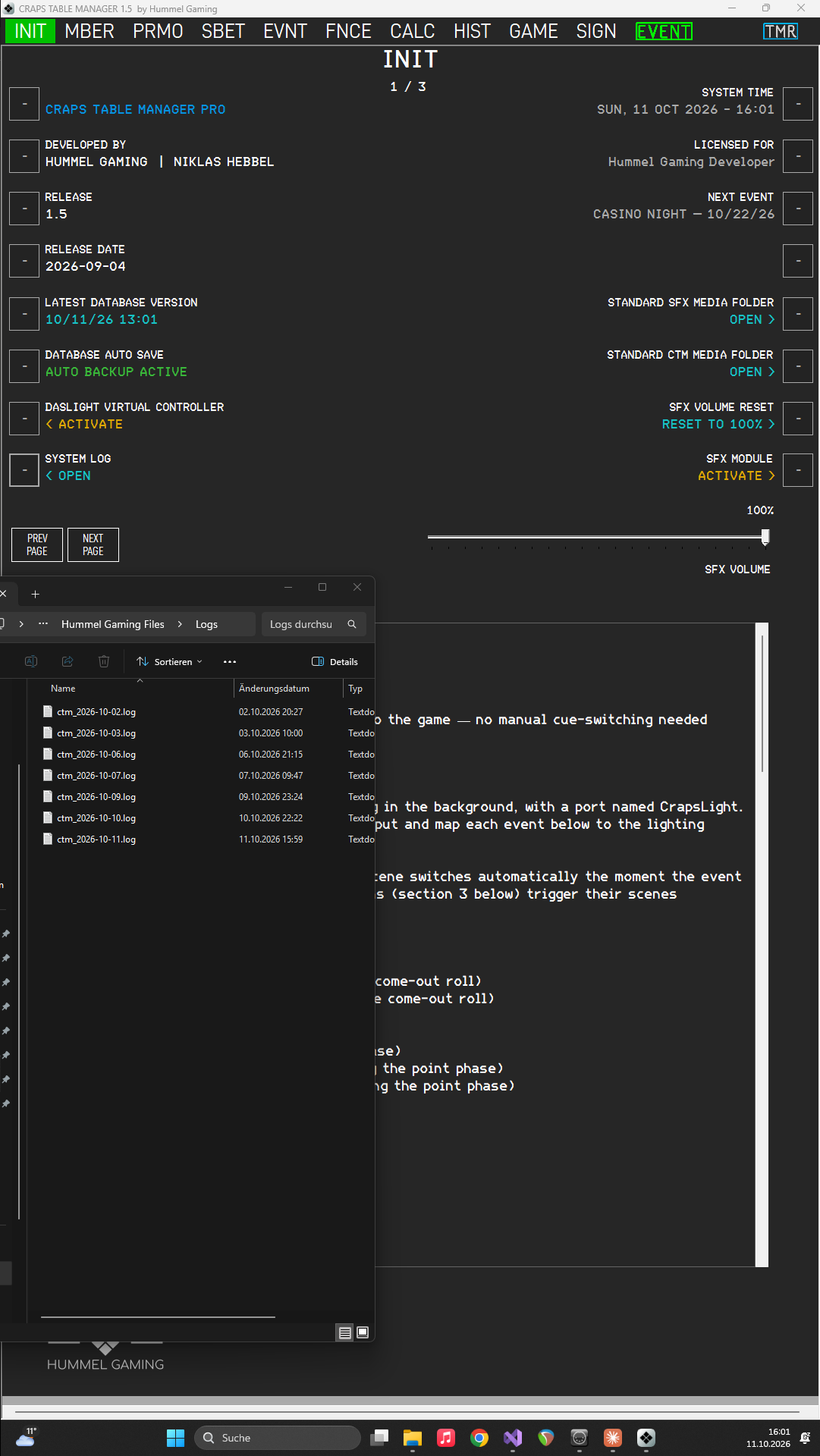
CTM writes one log file per day, named ctm_ followed by the date, for example ctm_2026-10-30.log. Each start of CTM is marked with the version, the edition, your Windows version, and the name of your computer. After that, CTM records messages about its work, such as backups, and every error that occurs, including technical details.
The log may contain technical details of your computer and, in error messages, the names of files and folders. CTM deletes log files older than 30 days automatically.
Finding the Log Files#
On INIT page 1, press the LSK next to SYSTEM LOG to open the log folder in File Explorer. By default, it is Documents\Hummel Gaming Files\Logs. You can choose a different folder on INIT page 2.
Contacting Support#
Write to contact@hummelgaming.com and include:
- a short description of what you were doing and what happened, or which message appeared
- the log file of the day on which the problem occurred, or the files of several days if the problem is older
- your CTM version and edition (Basic or Pro), which you find on INIT page 1
- a screenshot, if a message or a page looks wrong
If an unexpected error occurs, CTM shows a window with the message An unexpected error occurred and the name of the log file that contains the details. CTM keeps running, so you can usually continue. Send that file to support if the problem persists.