13. Creating and Editing Events
The Event Manager is where you plan an evening. Every event has its own date and times, table limits, game mode, players, player positions, side bets, promotions, notes, and checklist. The EVENT MANAGER page shows the data fields of the selected event, plus a DG listing your events, newest first. The DG columns are ID, STATUS, EVENT TITLE, DATE, DOOR TIME, DINNER TIME, and GAME TIME. Finalized events stay hidden in the DG until you show them.
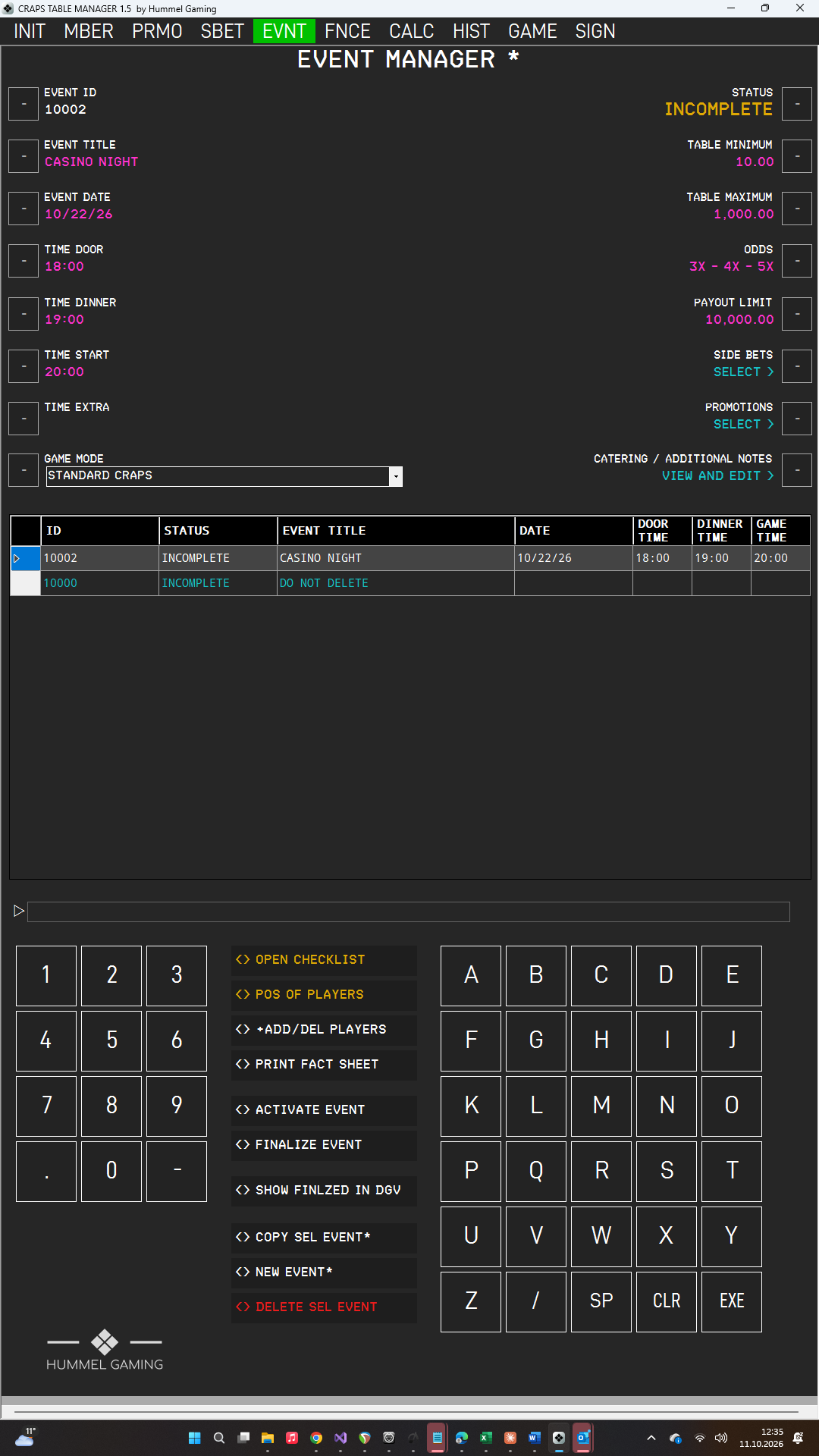
Creating and Editing an Event#
- Open EVNT and press NEW EVENT*. CTM clears the data fields, assigns the next free EVENT ID, and sets the status to INCOMPLETE.
- Type the title and press the LSK next to EVENT TITLE. The title is required.
- Fill in the remaining data fields as described below and in Table Limits and Game Settings.
- Press EXE.
Save the event before you add players, side bets, promotions, or notes, because these buttons operate on the saved event.
To edit an event, tap it in the DG, change the data fields, and press EXE. While unsaved changes exist, an asterisk (*) appears after the page title. To empty a data field, press CLR on an empty ScratchLine and then the LSK next to the data field.
| Data field | What to enter |
|---|---|
| EVENT ID | Assigned by CTM. |
| EVENT TITLE | The name of the event. Required. |
| EVENT DATE | The date in your chosen date format, for example 10/30/26. |
| TIME DOOR, TIME DINNER, TIME START, TIME EXTRA | Times in the 24-hour format. Type the hours, the / key, and the minutes, for example 19/30; CTM displays 19:30. TIME START is the start of the game, and TIME EXTRA is an additional time of your choice. |
| STATUS | Set by CTM. |
→ See Date Format.
The entry DO NOT DELETE in the DG is part of the initial database. Leave it as it is.
Table Limits and Game Settings#
| Data field | What to enter |
|---|---|
| TABLE MINIMUM, TABLE MAXIMUM | The lowest and highest bet at your table. |
| PAYOUT LIMIT | The highest amount you pay out on a single bet. |
| ODDS | The odds you offer at your table, for example 5X. Any text is accepted. |
| GAME MODE | Tap the drop-down list and select a game mode. You define game modes on INIT page 2. |
Enter amounts as 100 or 100.00; CTM displays them as 100.00. In the Pro edition, the digital signage shows your guests the table minimum, table maximum, odds, and payout limit. All of these values are also printed on the fact sheet.
Event Notes#
Press the LSK next to CATERING / ADDITIONAL NOTES to open the ADD NOTES sub page. It has two text boxes: CATERING NOTES on the left and ADDITIONAL NOTES on the right.
- Tap a text box.
- Type your notes with the alphanumeric keys.
- Press EXE.
Press EMPTY CATERING or EMPTY ADDITIONAL to empty a text box, and RETURN to go back to the Event Manager. Press EXE before you press RETURN; otherwise, your changes are lost. The notes are printed on the fact sheet.
Duplicating an Event#
If you run similar events, copy an earlier one.
- Tap the event in the DG.
- Press COPY SEL EVENT*. CTM creates a new event with the same data. The word COPY is appended to the title, and the status is INCOMPLETE.
- CTM asks five questions in succession. Click Yes or No in each window: COPY CHECKLIST?, COPY NOTES?, COPY PLAYERS?, COPY SIDE BETS?, and COPY PROMOTIONS?
- The new event is selected.
If you copy the checklist, all tasks are copied with their check marks cleared. If you answer No, the new event receives your standard checklist. Players are copied without their positions. The date and times are copied as well, so change them for the new event.
Deleting an Event#
- Tap the event in the DG.
- Press DELETE SEL EVENT. A window asks for confirmation. Click Yes.
CTM deletes the event together with its players, side bets, promotions, and checklist. Active and finalized events cannot be deleted.