23. Searching and Printing
Searching Transactions#
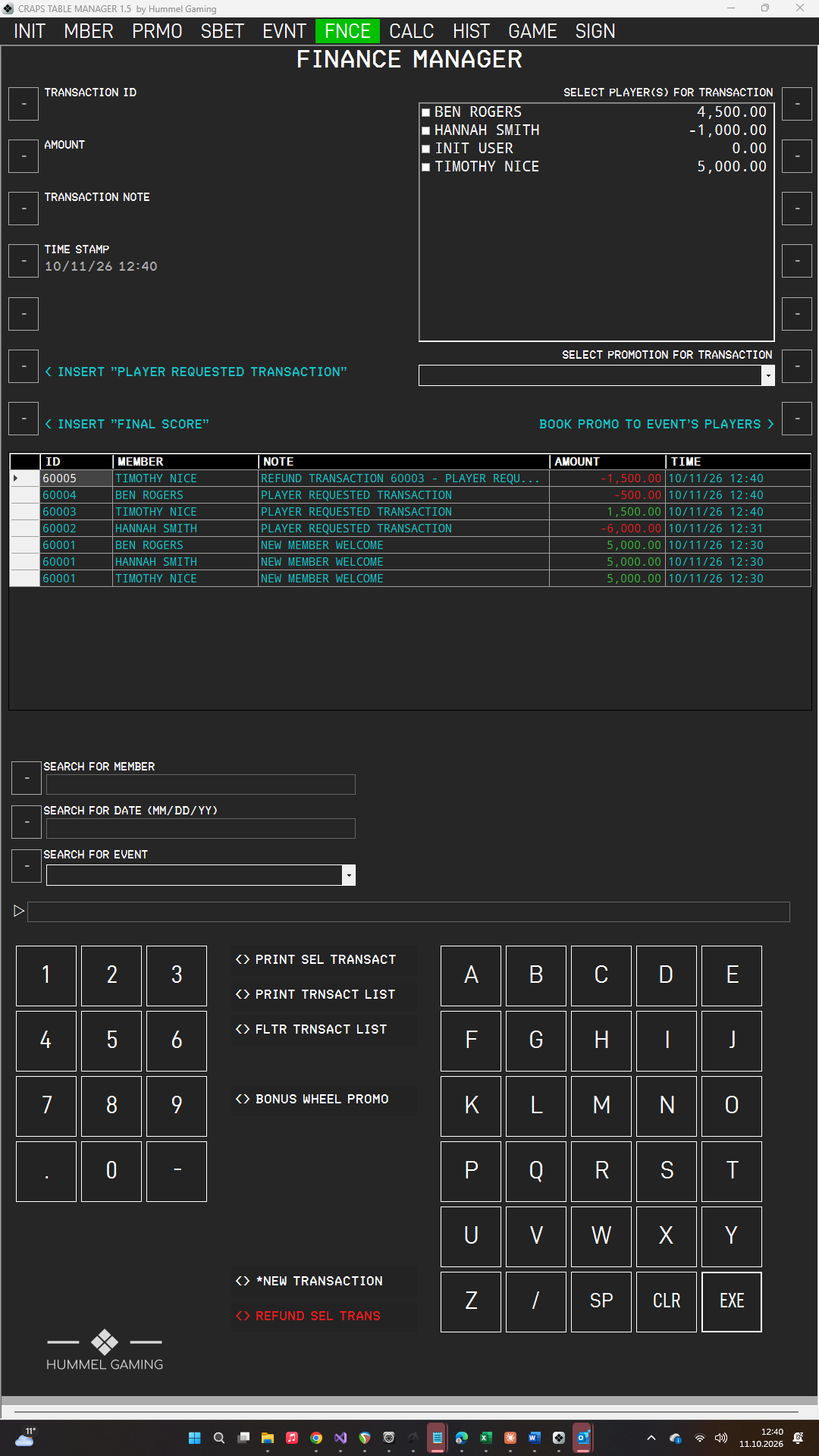
You can search the transaction list by player, by date, and by event. Set one or more criteria, then press FLTR TRNSACT LIST. The DG then shows only the transactions that match all of them.
| Search field | How to use it |
|---|---|
| SEARCH FOR MEMBER | Type part of the name and press the LSK. CTM matches the text anywhere in the name. |
| SEARCH FOR DATE | Type the date in your chosen date format and press the LSK. The heading shows the format, for example MM/DD/YY. |
| SEARCH FOR EVENT | Press the LSK next to the field to open the list of all events, and select one. |
To empty a search field, press CLR on an empty ScratchLine and then the LSK next to it. To see all transactions again, empty all three search fields and press FLTR TRNSACT LIST.
When you search by event, CTM finds the transactions that were assigned to that event. Transactions booked without an active event are not assigned to any event.
Printing the Transaction List#
Press PRINT TRNSACT LIST to print the transactions currently shown in the DG. To print only a subset, search first. The list is printed in landscape format, with your company header and the columns TIME, TRANSACT ID, AMOUNT, TRANSFERED TO, and NOTE.
Printing Receipts#
- Tap the transaction in the DG.
- Press PRINT SEL TRANSACT.
- The print window opens. Choose your settings and print.
The receipt shows your company header, the time of printing, and the TRANSACTION RECEIPT with time stamp, transaction ID, amount, player, and note, plus your dealer name if you entered one.
The receipt shows the player of the selected row. For a transaction involving several players, print one receipt per row.