8. Settings Page 3 – Printouts and Preferences
Page 3 contains the settings for your printouts, the date format, and the automatic refund of promotion credit. As on the other settings pages, each change is saved immediately.
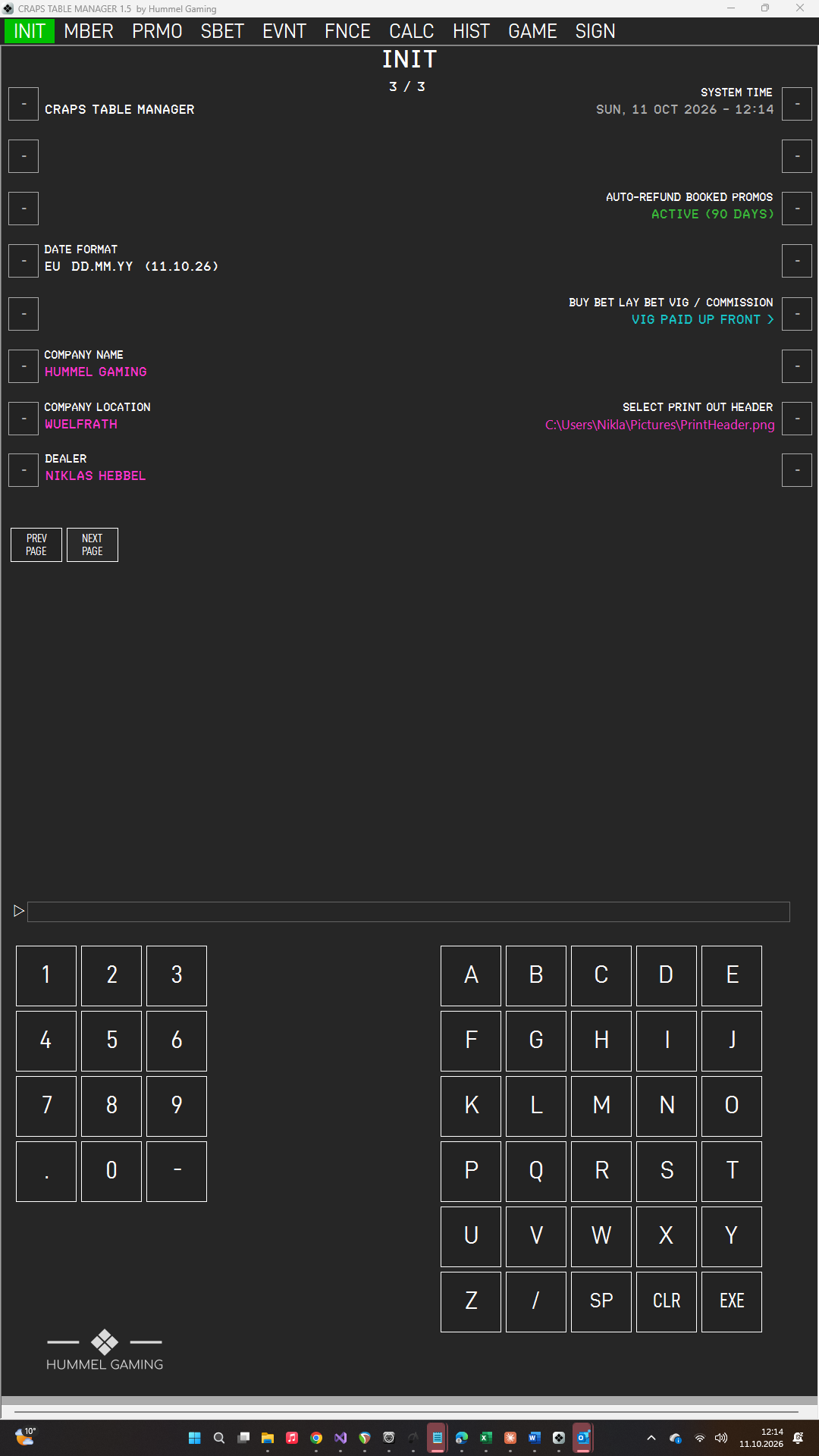
Company Name and Location#
Your company name and location appear at the top of every printout.
- Type your company name and press the LSK next to COMPANY NAME.
- Type your location and press the LSK next to COMPANY LOCATION.
To empty a data field, press CLR on an empty ScratchLine and then the LSK next to the data field.
Important: Until you change them, these data fields hold the software's default values. Enter your own company name and location before your first printout.
Dealer Name#
The dealer name appears on your transaction receipts.
Type the name and press the LSK next to DEALER. To remove it, press CLR on an empty ScratchLine and then the LSK. If no dealer name is set, the receipt omits the dealer line.
Print Header Image#
You can print your own header image, such as your logo, at the top of every printout.
- Press the LSK next to SELECT PRINT OUT HEADER.
- Choose an image file (PNG, JPG, or BMP).
- The file's location is displayed in the data field.
The image is printed in the top left corner of every page. Prepare it at a size of up to 21 × 5 cm, the full width of an A4 page. CTM prints it without a margin, so include any margin you want in the image itself. The image retains its proportions.
Date Format#
Press the LSK next to DATE FORMAT to cycle through three date formats. The data field shows the current format with today's date as an example:
| Setting | Format | Example |
|---|---|---|
| US | MM/DD/YY | 09/26/26 |
| EU | DD.MM.YY | 26.09.26 |
| ISO | YYYY-MM-DD | 2026-09-26 |
The setting applies to the entire software: to dates you enter and to every date CTM displays, including on printouts. Your existing data is not altered; it is simply displayed in the new format.
Entering dates. Type the date in the order of the selected format. You can use /, -, or . as the separator. The year may have two or four digits, and day and month may have one or two digits. With the US format, 9/26/26 and 09-26-2026 are both valid. Some keypads offer only the / key, which works with every date format. CTM verifies that the date exists.
Amounts and times. These do not depend on this setting. Amounts always use the US format, for example 1,000.00, and times always use the 24-hour clock, for example 19:30.
Auto-Refund of Booked Promos#
Credit from promotions, such as a welcome bonus, is offered for refund after 90 days if it has not yet been refunded.
Press the LSK next to AUTO-REFUND BOOKED PROMOS to switch this on or off. The data field shows ACTIVE (90 DAYS) in green or INACTIVE in amber.
- Active: Each time you open the Finance page (FNCE), CTM checks for promotion bookings that are older than 90 days and have not been refunded. If it finds any, CTM lists them and asks whether to refund them now.
- Inactive: CTM neither asks nor refunds anything.
If you switch the refund back on after some time, CTM lists all promotion credit older than 90 days the next time you open FNCE.
→ See Promotions in Finance.
Vig for Buy and Lay Bets#
Casinos charge a 5 % vig (commission) on buy bets and lay bets, and they do so in one of two ways. Press the LSK next to BUY BET LAY BET VIG / COMMISSION to choose the way your table works. The data field shows the current choice:
| Data field | Meaning |
|---|---|
| VIG TAKEN FROM THE WIN > | The vig is deducted only from a winning bet. The Payout Calculator shows the win minus the vig. This is the default. |
| VIG PAID UP FRONT > | The vig is paid when the bet is placed. The Payout Calculator shows the full win. |
On a buy bet, the vig is 5 % of the bet; on a lay bet, it is 5 % of the possible win.
→ See Payout Calculator.