6. Settings Page 1 – System
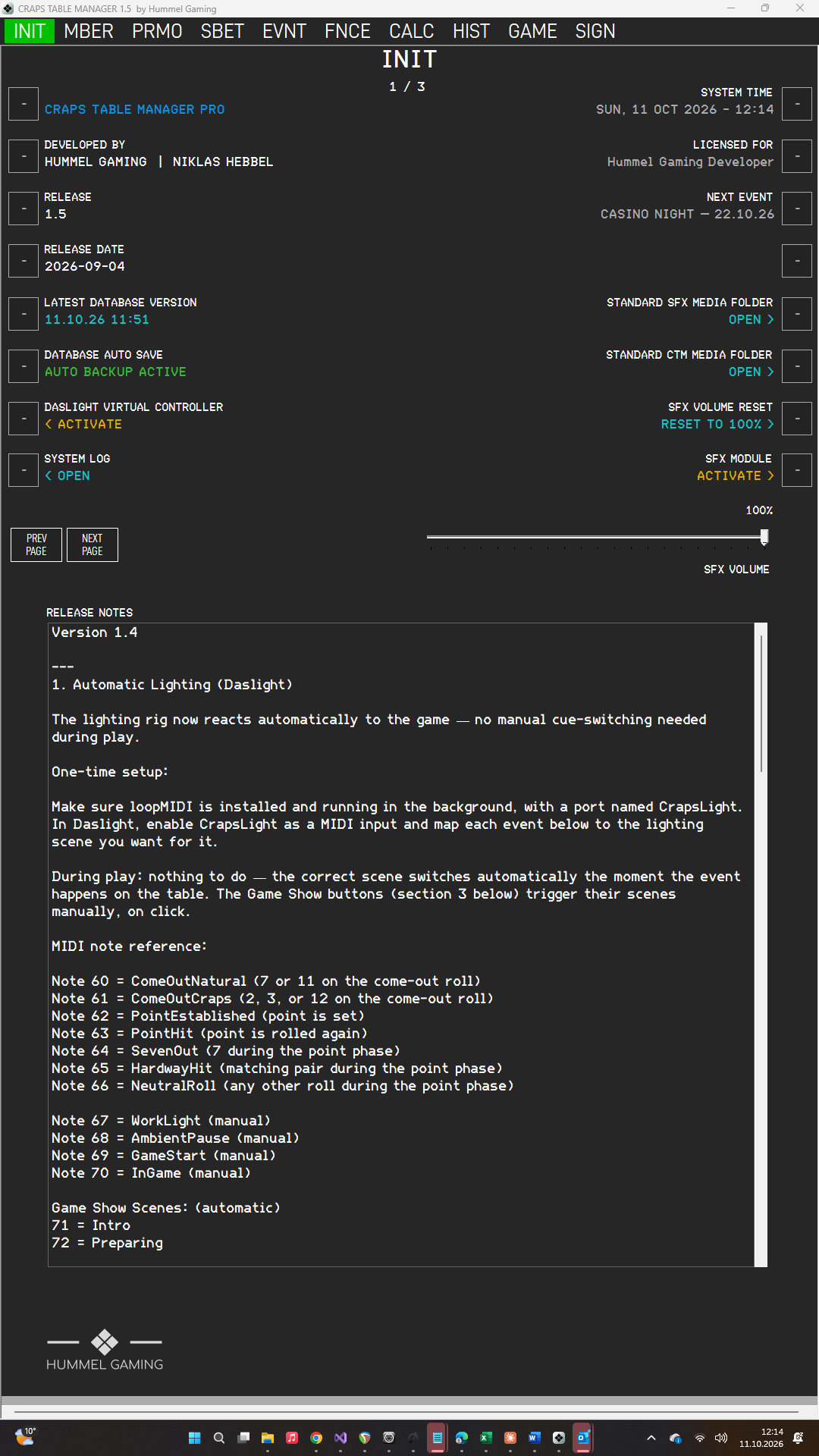
INIT is the settings area of CTM. It has three pages; use the PREV PAGE and NEXT PAGE buttons to move between them. The page number appears at the top, for example 1 / 3.
The settings pages have no EXE key: every change is saved the moment you make it.
License Information#
Page 1 shows information about your installation:
| Data field | Shows |
|---|---|
| CRAPS TABLE MANAGER | Your edition: CRAPS TABLE MANAGER PRO or CRAPS TABLE MANAGER BASIC. |
| DEVELOPED BY | The developer of CTM. |
| RELEASE | The installed version, for example 1.7. |
| RELEASE DATE | The date of this release. |
| LICENSED FOR | The name your license is registered to. |
| SYSTEM TIME | The current date and time of your computer. |
These values cannot be changed, and the LSKs next to them have no function. The RELEASE NOTES at the bottom of the page describe what is new in your version.
Next Event#
NEXT EVENT displays the next upcoming event with its title and date. CTM selects the event dated today or, failing that, the closest later date. The date appears in your chosen date format.
Sound Effects, Volume and Media Folders (Pro)#
The right side of page 1 controls the sound effects and provides quick access to your media folders.
→ See Game Show Controller and Sound Effects.
- SFX MODULE: Press the LSK to switch the sound effects on or off. The data field shows ACTIVE in green when they are on and ACTIVATE > in amber when they are off. In the Basic edition, it shows PRO ONLY.
- SFX VOLUME: Drag the slider to set the volume of the sound effects. The value is displayed as a percentage.
- SFX VOLUME RESET: Press the LSK to restore the volume to 100 %.
- STANDARD SFX MEDIA FOLDER: Press the LSK to open the folder containing your sound files in File Explorer. CTM creates the folder if it does not yet exist.
- STANDARD CTM MEDIA FOLDER: Press the LSK to open the folder containing the images and videos for your digital signage in File Explorer.
To choose different folders, see Settings Page 2 – File Locations.
Daslight Controller (Pro)#
DASLIGHT VIRTUAL CONTROLLER launches your Daslight show, which runs the light cues. Press the LSK to open the show file. The data field shows ACTIVE in green while the show is running and < ACTIVATE in amber when it is not. In the Basic edition, it shows PRO ONLY.
CTM opens the show file you selected on page 2. The setup of the light show is described in Lighting Scenes.
Tip: CTM detects a running show by the name in the Daslight window. For this reason, we recommend including CTM in the name of your show file, as in the default file CTM.dvc.
Database Backups#
The left side of page 1 controls the automatic backups of your database:
- LATEST DATABASE VERSION: shows the date and time of the most recent backup. Press the LSK to create a backup immediately.
- DATABASE AUTO SAVE: Press the LSK to switch the automatic backup on or off. The data field shows AUTO BACKUP ACTIVE in green or AUTO BACKUP PAUSED in amber.
While the automatic backup is active, CTM creates a backup every 30 minutes. It is switched on again each time you start CTM.
Every backup is saved as a new file with the date and time in its name, so no backup is ever overwritten. You choose the backup folder on page 2.
→ See Backups and Restore.
Log Files#
CTM writes a log file containing technical and error messages. If you contact support, we may ask you for this file. Press the LSK next to SYSTEM LOG to open the log folder in File Explorer. You can change the folder on page 2.