7. Settings Page 2 – File Locations
Page 2 defines where CTM finds and stores its files. Each entry shows its current location. To change it, press the LSK next to the entry and choose a new location in the Windows dialog; the new location is saved and takes effect immediately. The database folder is the one exception, as described below.
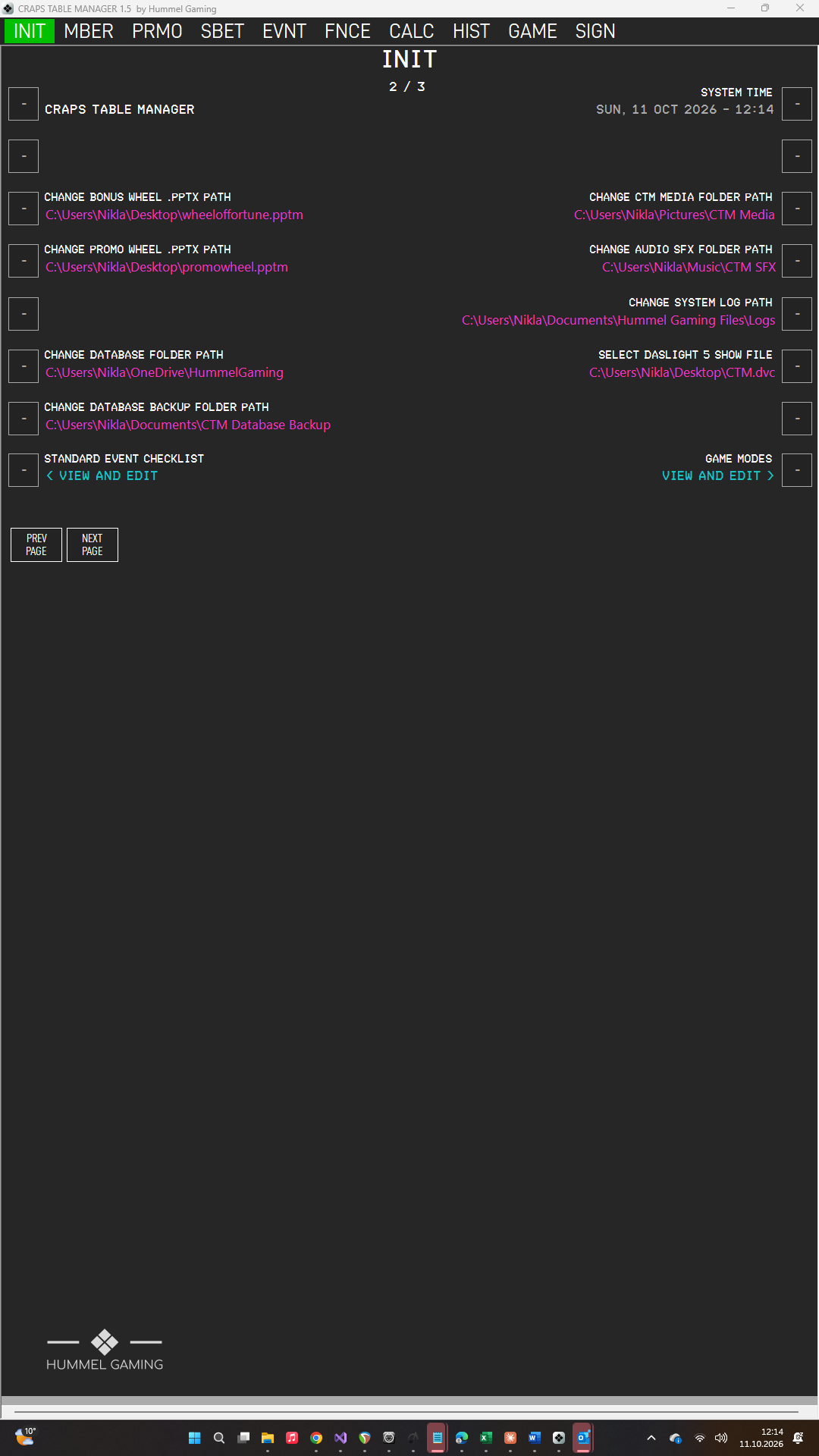
By default, CTM keeps all of these files together in one main folder, Documents\Hummel Gaming Files, which it creates at the first start. These are the default locations:
| Entry | Default location |
|---|---|
| Database folder | Documents\Hummel Gaming Files\Database |
| Backup folder | Documents\Hummel Gaming Files\Backups |
| System log folder | Documents\Hummel Gaming Files\Logs |
| CTM media folder | Documents\Hummel Gaming Files\Media |
| Sound effects folder | Documents\Hummel Gaming Files\SFX |
| Daslight show file | Documents\Hummel Gaming Files\Light Show\CTM.dvc |
| Bonus Wheel file | Documents\Hummel Gaming Files\Wheels\bonuswheel.pptm |
| Promo Wheel file | Documents\Hummel Gaming Files\Wheels\promowheel.pptm |
| Jackpot configuration file | Documents\Hummel Gaming Files\JackpotConfig.txt |
Database Folder#
Press the LSK next to CHANGE DATABASE FOLDER PATH to choose the folder in which CTM keeps its database file.
If a database already exists in the current folder and the new folder contains none, CTM asks whether to move the existing database to the new location. Click Yes to keep your data. If you click No, your old database stays where it is, and CTM creates a new, empty database in the new folder the next time it starts.
The change takes effect after you restart CTM.
To work with the same database on several computers, you can choose a folder that is synchronized by OneDrive, iCloud, or Dropbox, or a folder on a network drive. Use CTM on only one computer at a time. At startup, CTM warns you if the database is still being synchronized or was used on another computer moments earlier.
→ See Your Data.
Backup Folder#
Press the LSK next to CHANGE DATABASE BACKUP FOLDER PATH to choose where CTM saves your backups. We recommend a folder on a different drive or in a cloud folder, so that your backups survive the failure of your main drive.
System Log Folder#
Press the LSK next to CHANGE SYSTEM LOG PATH to choose the folder where CTM writes its log files. Log files older than 30 days are deleted automatically.
Media Folder (Pro)#
Press the LSK next to CHANGE CTM MEDIA FOLDER PATH to choose the folder containing the images (JPG, PNG) and videos (MP4) for the slideshow on the digital signage. Files named header, footer, closed, and jackpotlogo have a special meaning.
→ See Digital Signage.
You can also choose this folder on the SIGN page.
Sound Effects Folder (Pro)#
Press the LSK next to CHANGE AUDIO SFX FOLDER PATH to choose the folder containing your sound files.
→ See Game Show Controller and Sound Effects.
Daslight Show File (Pro)#
Press the LSK next to SELECT DASLIGHT 5 SHOW FILE to choose your Daslight show file (extension .dvc).
Bonus Wheel and Promo Wheel Files (Pro)#
Press the LSK next to CHANGE BONUS WHEEL .PPTX PATH or CHANGE PROMO WHEEL .PPTX PATH to choose your wheel presentations. Select a macro-enabled PowerPoint presentation (extension .pptm).
Standard Checklist#
Press the LSK next to STANDARD EVENT CHECKLIST (the data field shows < VIEW AND EDIT) to open the DEFINE STANDARD CHECKLIST sub page, where you create the checklist that every new event starts with. The standard checklist is empty at first.
→ See The Standard Checklist.
Game Modes#
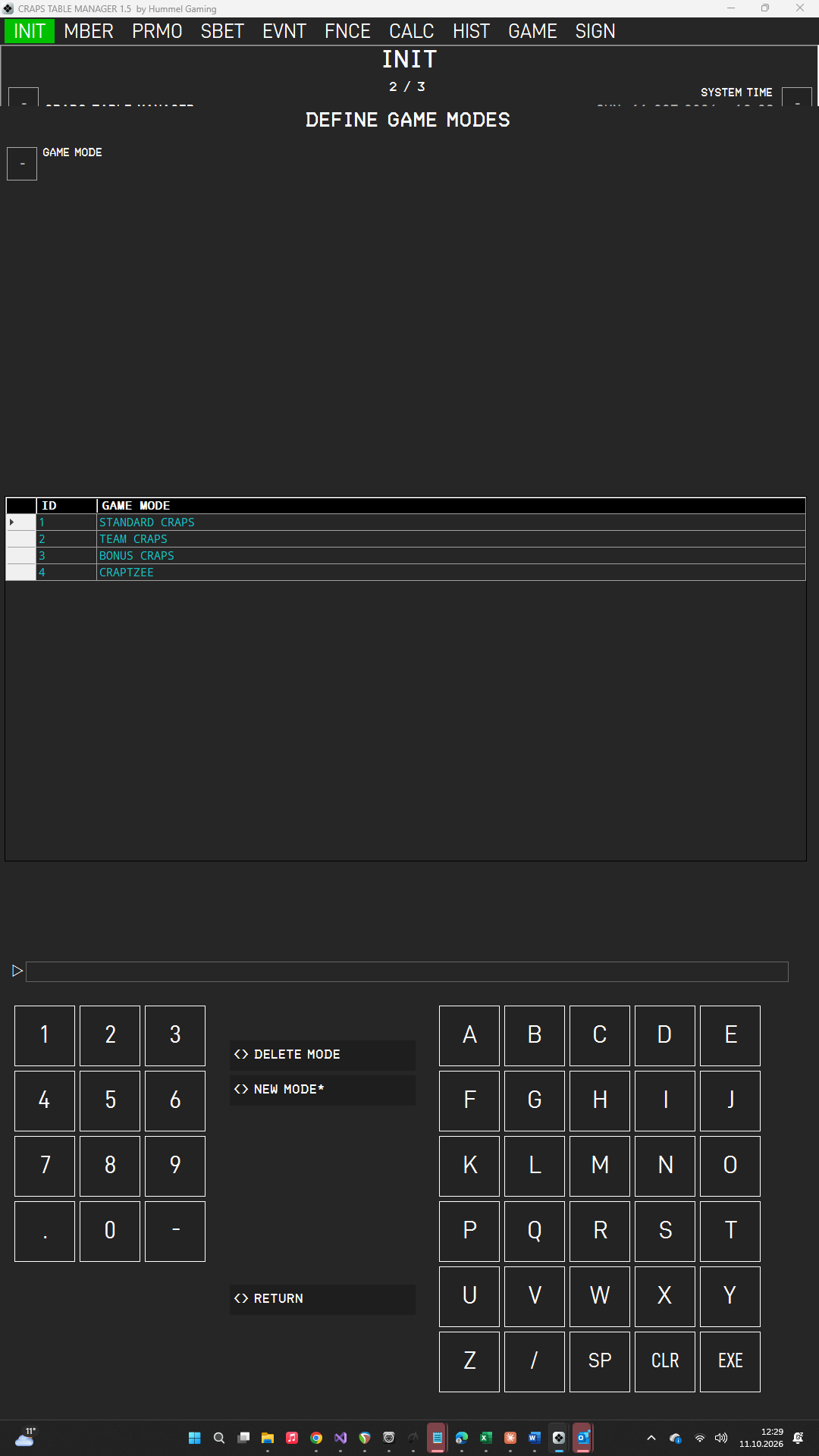
The GAME MODE list in the Event Manager offers the game modes you define here. Press the LSK next to GAME MODES to open the DEFINE GAME MODES sub page, which lists all game modes in a data grid.
- Add a game mode: Type the name and press the LSK next to GAME MODE, then press EXE.
- Rename a game mode: Tap it in the data grid, type the new name, press the LSK, and then press EXE.
- Start a new entry: Press NEW MODE*. This clears the data field and the selection.
- Delete a game mode: Tap it in the data grid, press DELETE MODE, and confirm with EXE.
Events that already use a game mode retain its name even if you delete the game mode from the list. Press RETURN to go back to the settings.