36. Backups and Restore
A backup is a copy of your database at a specific moment. If the database is ever damaged or a file is deleted by mistake, you can return to a backup.
Automatic Backups#
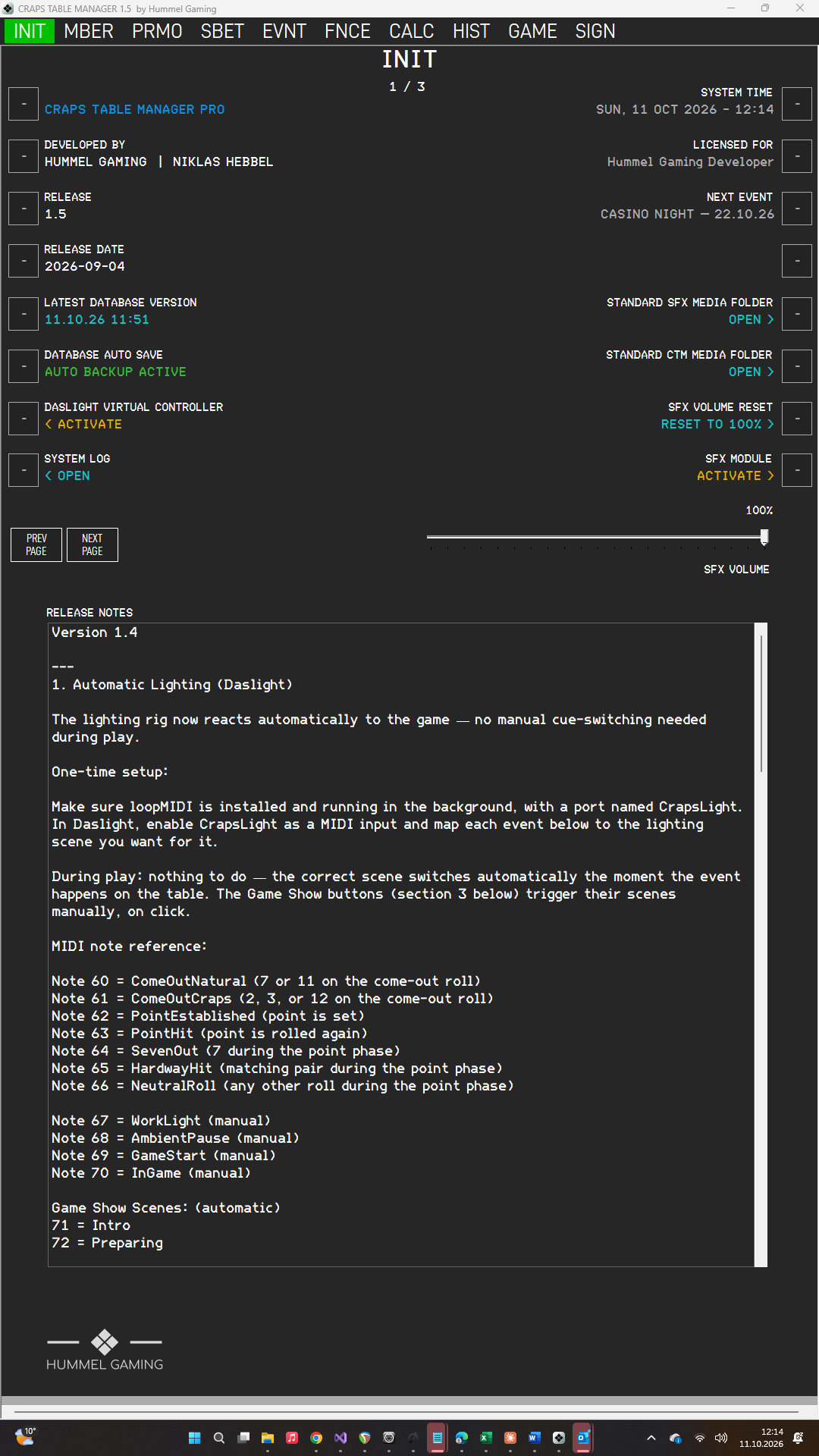
While CTM is running, it creates a backup every 30 minutes, provided that DATABASE AUTO SAVE on INIT page 1 shows AUTO BACKUP ACTIVE. CTM switches the automatic backup on again each time it starts.
Each backup is a copy of the database with the date and time in its name, for example Datenbank_20261030_193000.db for October 30, 2026, at 19:30:00. A backup never overwrites another one.
CTM does not delete old backups. Because an evening produces many backups, remove old ones from the Backups folder from time to time.
Manual Backups#
On INIT page 1, press the LSK next to LATEST DATABASE VERSION to create a backup immediately. The data field then shows the date and time of the new backup.
We recommend a manual backup at these moments:
- before an event begins
- after you have finalized an event
- before you update CTM or move your data to another computer
Restoring a Backup#
CTM has no restore button. You restore a backup by replacing the database file:
- Close CTM.
- Open the Backups folder and choose the backup you want. The date and time in the name tell you when it was made.
- Open the Database folder. Rename Datenbank.db to Datenbank_old.db, so that you can still go back if the backup turns out to be the wrong one.
- Copy the backup into the Database folder and rename the copy to Datenbank.db.
- Start CTM.
Everything you entered after the moment of the backup is lost. If you have changed the folder locations on INIT page 2, use your own folders instead of the default ones.
Moving to a New Computer#
- On the old computer, create a manual backup and copy the newest backup file to a USB drive.
- On the new computer, install CTM, activate your license, and start CTM once. CTM creates its folders and an empty database.
- Close CTM. Copy the backup file into the Database folder, delete the empty Datenbank.db, and rename the copy to Datenbank.db.
- Copy your media, sound files, wheel presentations, and Daslight show file into their folders.
- Start CTM.