9. The Standard Checklist
Every event has a checklist of tasks to complete before the game. Each new event starts with a copy of your standard checklist. CTM ships with an empty standard checklist, so you set it up once, before your first event. This chapter explains how.
How the Standard Checklist Works#
The standard checklist is a template made up of tasks, each of which belongs to a category.
- When you save a new event for the first time, CTM copies the standard checklist into it. The same happens when you duplicate an event and answer No to COPY CHECKLIST?
- Later changes to the standard checklist do not affect events that already exist.
- Within each event, you can still check off tasks, add tasks, and delete tasks.
→ See The Event Checklist.
To open the standard checklist, go to INIT page 2 and press the LSK next to STANDARD EVENT CHECKLIST (the data field shows < VIEW AND EDIT). The DEFINE STANDARD CHECKLIST sub page opens, listing all tasks and their categories in a data grid.
Creating Your Standard Checklist#
Your changes on this sub page remain temporary until you press EXE. An asterisk (*) after the page title indicates unsaved changes.
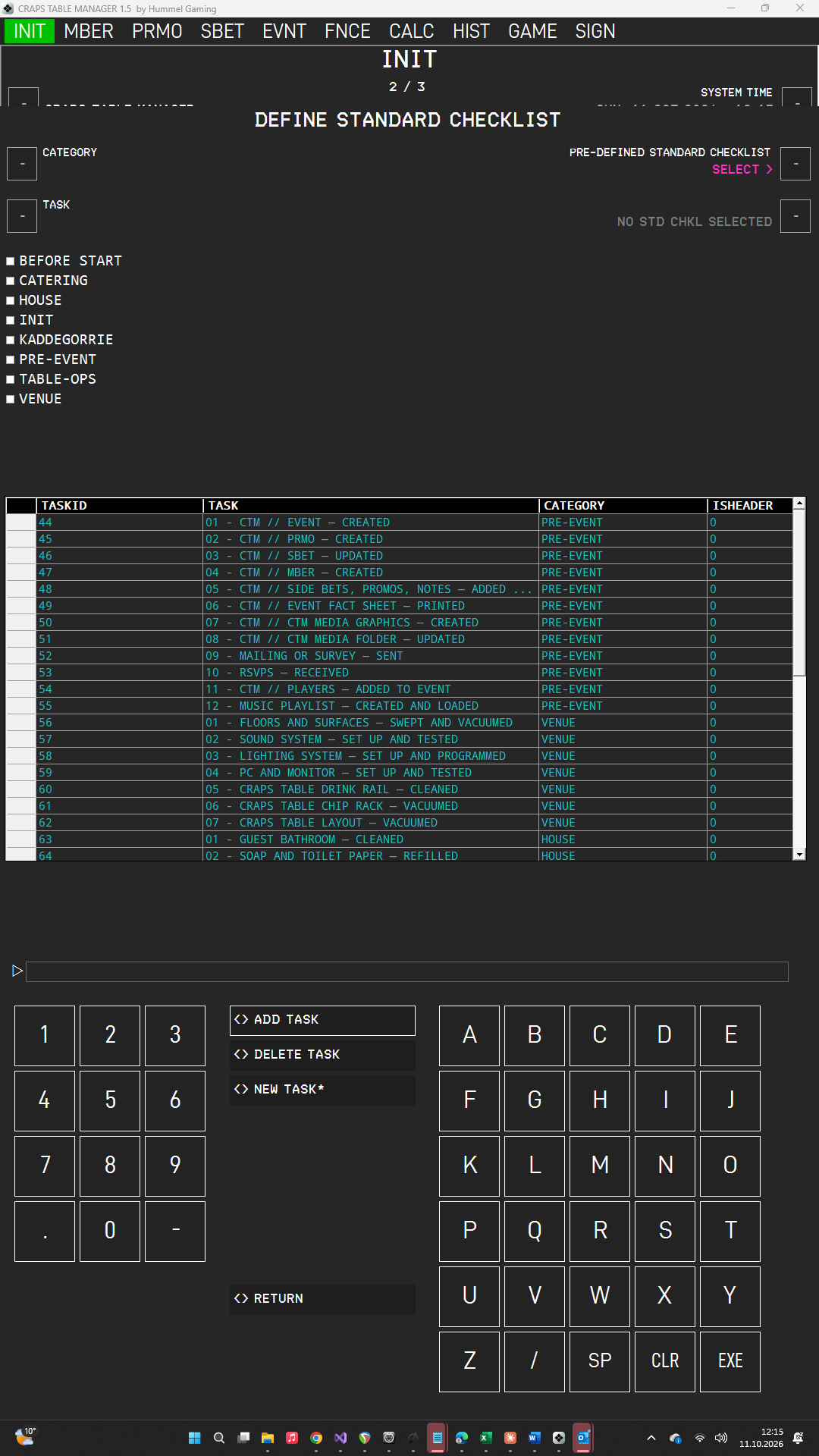
- Press NEW TASK*. This clears the data fields and the selection, including the selected category.
- Choose the category. Tap an existing category in the list below SELECT EXISTING CATEGORY, or type a new category and press the LSK next to CATEGORY.
- Type the task and press the LSK next to TASK.
- Press ADD TASK. The task appears in the DG, and the data fields are cleared. The category stays selected in the list; a newly typed category now appears there.
- Repeat these steps for every task. For further tasks in the same category, skip the category step: type the task, press its LSK, and press ADD TASK. Press NEW TASK* before you start a different category.
- Press EXE to save. The asterisk disappears.
- Press RETURN.
Always enter a category. The event checklist groups tasks by category, so a task without one ends up in an unnamed group. The task text is mandatory.
If you tap an existing category and also type a different one, CTM does not guess. The ScratchLine asks:
SELECTED CATEGORY VIA CLR // ADD WITH NEW CATEGORY --> EXE
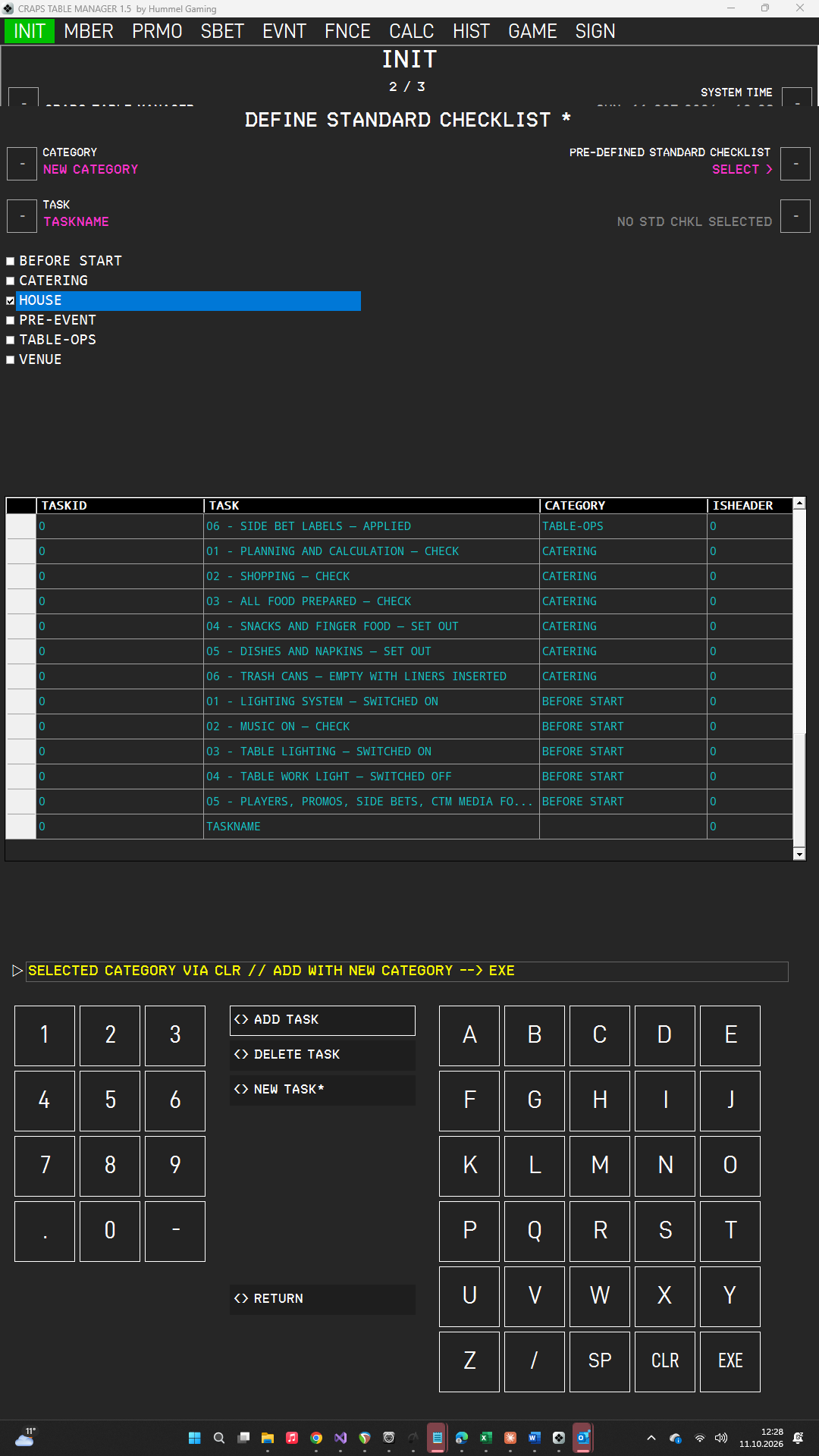
- Press CLR to use the category you selected in the list.
- Press EXE to use the category you typed. It is added as a new category.
Importing Tasks from a Text File#
Typing many tasks on the on-screen keyboard is slow. Instead, you can prepare the whole standard checklist in a text file and load it in one step.
Create a plain text file (.txt), for example in Notepad. Write one task per line: the category first, then a semicolon, then the task.
1 PREPARATION; CONFIRM THE GUEST LIST
1 PREPARATION; SEND A REMINDER TO THE GUESTS
2 EQUIPMENT; SET UP THE CRAPS TABLE
2 EQUIPMENT; TEST THE LIGHTS
3 CATERING; SET UP THE BAR
Empty lines and lines that begin with # are ignored. CTM converts all text to uppercase. Save the file as UTF-8 or ANSI.
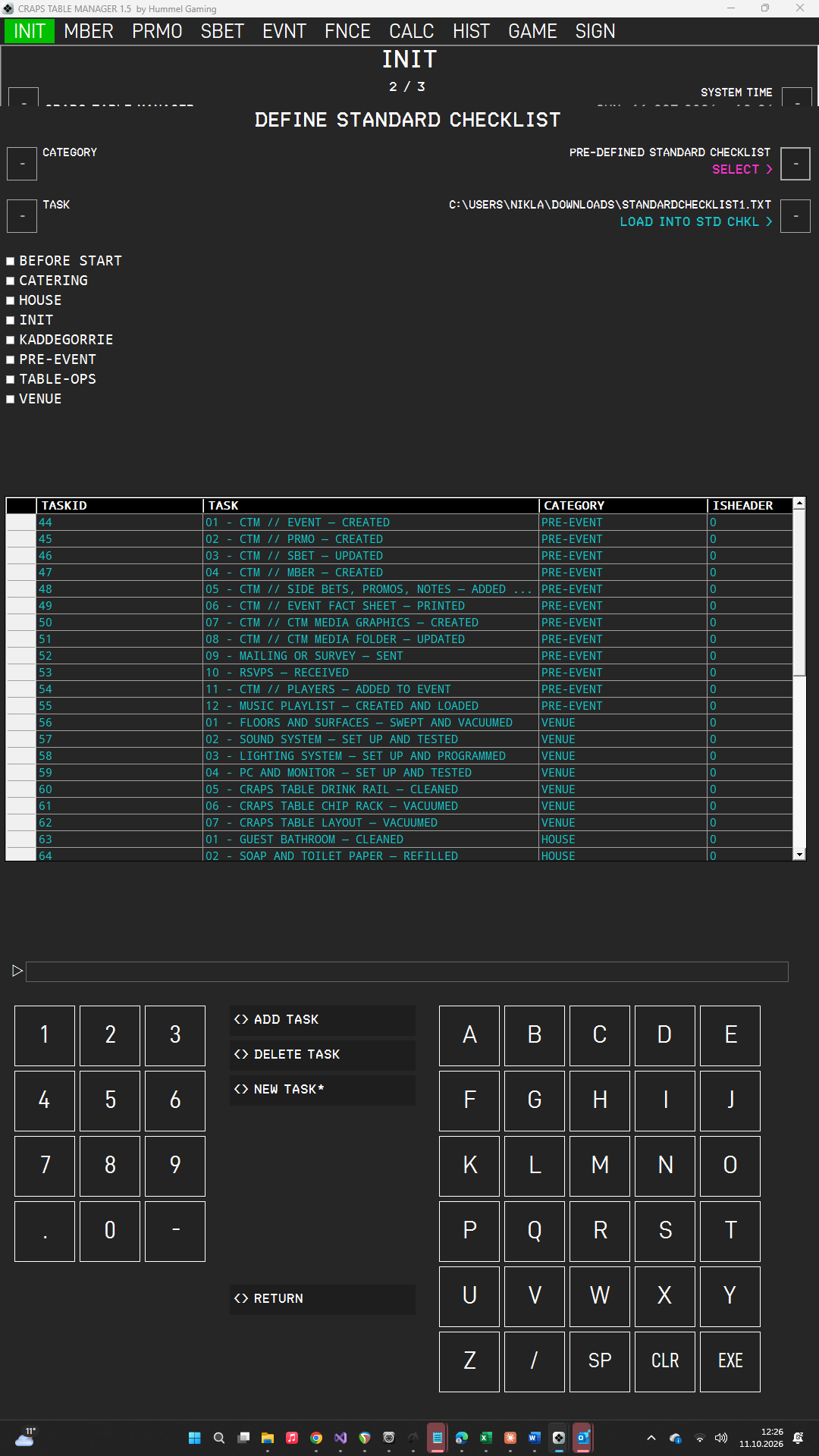
- Press the LSK next to PRE-DEFINED CHECKLIST (TXT FILE). As long as no file is selected, the line for loading shows NO STD CHKL SELECTED.
- Select your file in the dialog. Its path now appears in capital letters below the data field, and the loading line changes to LOAD INTO STD CHKL >.
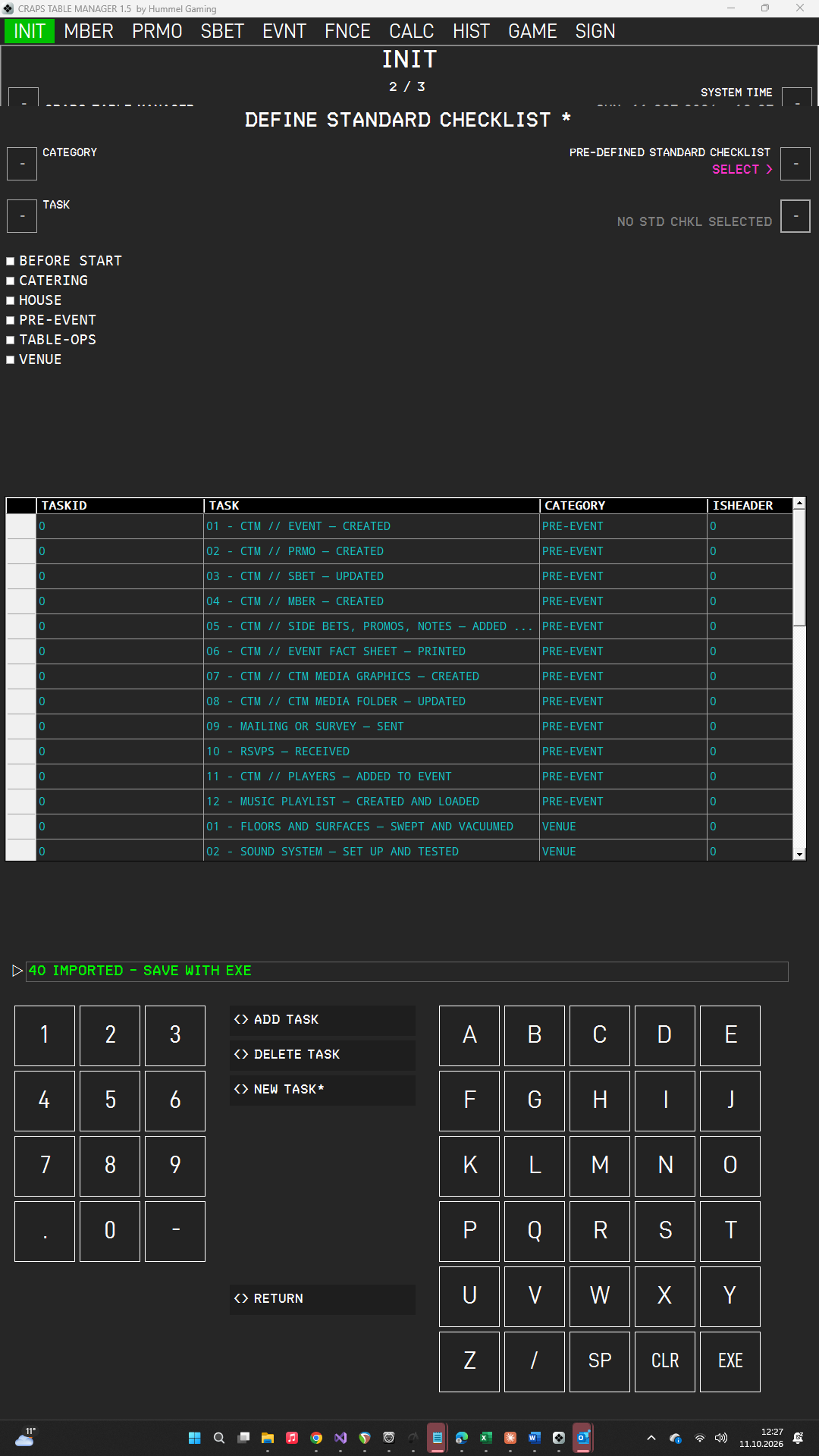
- Press the LSK next to LOAD INTO STD CHKL >. CTM deletes all existing tasks from the DG and replaces them with the tasks of the file. The file selection is then cleared again, so the file is loaded only once.
- Check the new tasks in the DG. You can edit or delete them as usual.
- Press EXE to save.
A task that appears twice in the file in the same category with the same text is loaded only once. A line without a semicolon or without a task text is skipped. To clear the file selection before loading, press CLR on an empty ScratchLine, so that it shows CLR, and then press the LSK next to PRE-DEFINED CHECKLIST (TXT FILE).
Editing and Deleting Tasks#
Editing a task. Tap the task in the DG. Its category and text appear in the data fields, and its category is selected in the list. Change them as you did when creating the task (to move the task to another category, tap that category in the list), then press ADD TASK. The task in the DG is updated. To add a new task afterward, press NEW TASK* first; otherwise, ADD TASK modifies the task that is still selected.
Deleting a task. Tap the task in the DG and press DELETE TASK. The task disappears from the DG.
Adding, editing, and deleting affect only the list on screen; nothing is stored until you press EXE. Changes apply to events you create afterward, whereas existing events keep their own checklists.
Leaving the Sub Page with Unsaved Changes#
If you press RETURN while unsaved changes exist, CTM does not leave the sub page. Instead, the ScratchLine asks:
UNSAVED CHECKLIST. *CONFIRM? --> EXE / CANCEL WITH CLR
- Press EXE to leave the sub page and discard your unsaved changes.
- Press CLR to stay on the sub page. You can then press EXE to save your changes or simply keep working.
Order of Categories and Tasks#
In the event checklist, CTM sorts categories alphabetically, and tasks within each category alphabetically as well. To impose your own order, begin the names with numbers, for example 1 PREPARATION, 2 EQUIPMENT, and 3 CATERING.
An Example#
The following example is for a casino night.
| Category | Tasks |
|---|---|
| 1 PREPARATION | CONFIRM THE GUEST LIST; SEND A REMINDER TO THE GUESTS |
| 2 EQUIPMENT | SET UP THE CRAPS TABLE; TEST THE LIGHTS; TEST THE SOUND SYSTEM; LOAD THE SLIDESHOW |
| 3 CATERING | CONFIRM THE MENU; SET UP THE BAR |
| 4 BEFORE START | PRINT THE FACT SHEET; CHECK THE PLAYER POSITIONS |