16. The Event Checklist
Every event has its own checklist covering everything that must be done before the game. When you save a new event, CTM copies your standard checklist into it. Tasks are grouped by category.
Opening the checklist. Select the saved event in the DG and press OPEN CHECKLIST. The DG has the columns CHECKED, TASK, and CATEGORY, and each category appears as a group line marked with ▶. While tasks remain open, the page title reads CHECKLIST. Once all tasks are checked, the title reads CHECKLIST COMPLETE. An event without any tasks counts as complete.
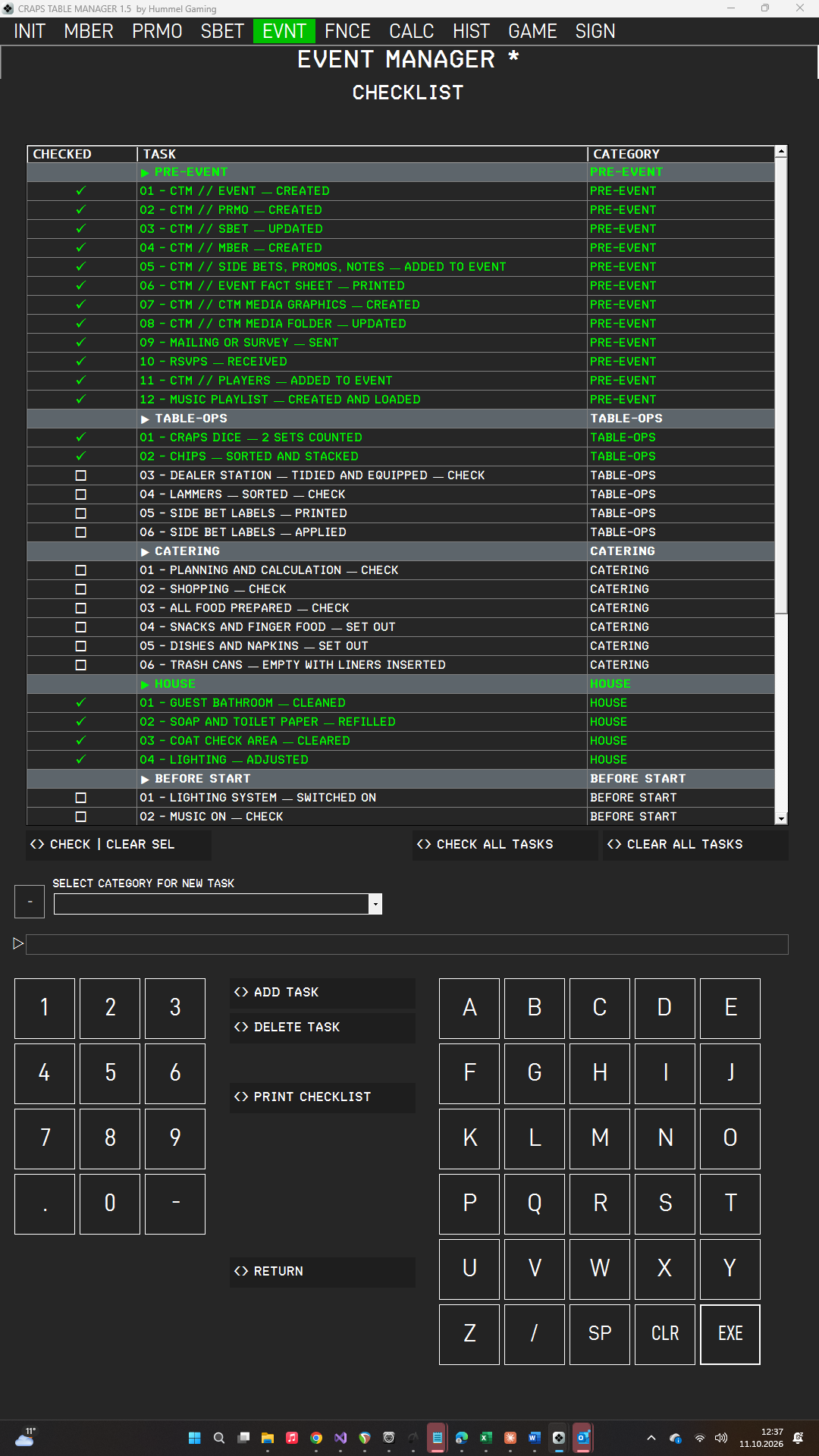
Checking tasks. Tap a task and press CHECK | CLEAR SEL to check it or to clear its check mark. CHECK ALL TASKS checks every task, and CLEAR ALL TASKS clears all check marks. Category lines cannot be checked.
Adding a task. Choose a category in SELECT CATEGORY FOR NEW TASK by tapping the drop-down list. To use a new category, type its name and press the LSK next to the list. Then type the text of the task and press ADD TASK. The task appears in the list, unchecked.
Deleting a task. Tap the task and press DELETE TASK. The task disappears from the list. Category lines cannot be deleted. Deleting affects only this event, not your standard checklist.
Saving. Everything you do on this sub page (checking, adding, and deleting tasks) remains temporary until you press EXE. An asterisk (*) after the page title indicates unsaved changes. Press EXE to save; the asterisk disappears.
Leaving the sub page with unsaved changes. RETURN works as on the standard checklist: with unsaved changes, press EXE to leave and discard them, or CLR to stay.
Printing. Press PRINT CHECKLIST to print the saved checklist. Save your changes with EXE first.
Categories are listed alphabetically, as are the tasks within each category.
→ See The Standard Checklist.
In the Event Manager, the OPEN CHECKLIST button is green when all tasks are checked and amber while tasks remain open.