30. Lighting Scenes (Pro)
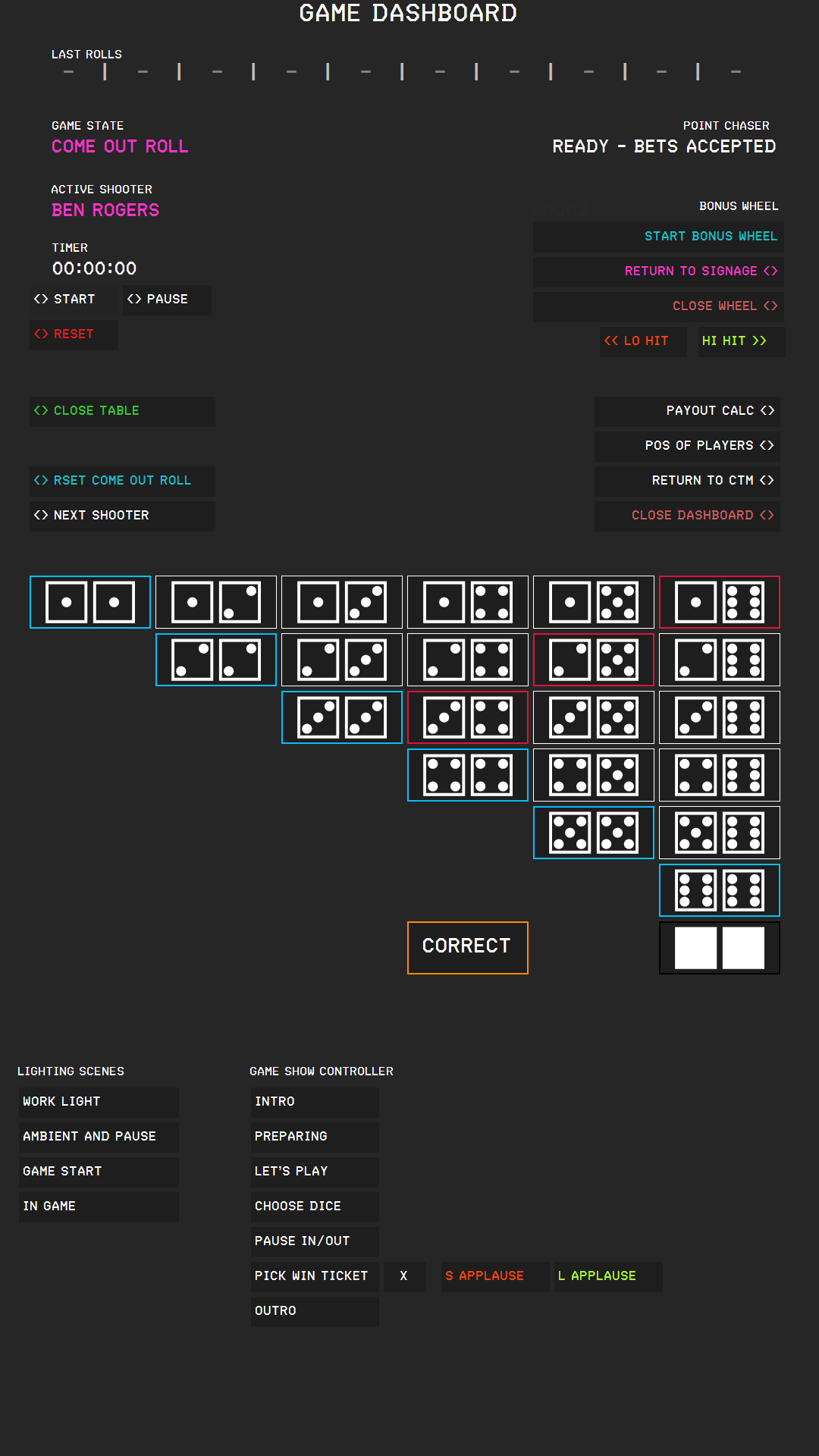
In the Pro edition, CTM controls your lights while you record the game. It does not control the fixtures itself: for every event, it sends a MIDI note, and Daslight 5 answers with the scene you assigned to that note. Every roll that matters, such as a seven out, changes the light automatically. You can also call up scenes yourself with the LIGHTING SCENES buttons.
Requirements#
- The Pro edition of CTM.
- Daslight 5 and a compatible DMX interface with your fixtures.
- loopMIDI with a virtual MIDI port. The name of the port must contain CrapsLight.
- Your scenes in a Daslight show file.
→ See Settings Page 1 – System.
Start loopMIDI before you start CTM, which looks for the port at startup. If it does not find a port with CrapsLight in its name, the lighting stays off, and the game continues without any message. If you start loopMIDI later, restart CTM.
Setting Up loopMIDI#
loopMIDI is a free program that creates virtual MIDI ports. CTM and Daslight communicate through such a port.
- Install loopMIDI and start it.
- Enter the port name CrapsLight in the field at the bottom of the loopMIDI window and click the + button. The port appears in the list.
- Set loopMIDI to start with Windows and run in the background.
Setting Up Daslight#
Daslight has to listen to the port and know which scene belongs to which note.
- Start Daslight 5 and open your show.
- Click the three dots at the top left of the Daslight window, then Edit, and then Settings.
- Open the page MIDI / Audio / BPM. Under MIDI DEVICES, open CrapsLight and tick MIDI Input. Click CLOSE.
- Assign one of the notes in the table below to each scene. Use MIDI Learn in Daslight: switch on MIDI Learn for the scene and press the matching button on the game dashboard. CTM sends the note, and Daslight remembers it.
- Save the show.
You do not need a scene for every note; a note without a scene does nothing.
Automatic Lighting#
CTM sends these notes while you record the game. They also trigger the matching sound effects.
→ See Game Show Controller and Sound Effects.
| Event | Note | When |
|---|---|---|
| Come-out natural | 60 | 7 or 11 on the come-out roll |
| Come-out craps | 61 | 2, 3 or 12 on the come-out roll |
| Point established | 62 | A point is set |
| Point hit | 63 | The shooter rolls the point |
| Seven out | 64 | A 7 while a point is set |
| Hard way hit | 65 | Two equal dice on 4, 6, 8 or 10 while a point is set |
| Neutral roll | 66 | Any other roll while a point is set |
| No roll | 81 | You press NO ROLL |
| Jackpot hit | 86 | A Side Bet Jackpot hits (Pro) |
CTM sends no notes when it recalculates the game after you press CORRECT, so the show does not play twice.
Scene Buttons#
The sixteen buttons under LIGHTING SCENES, numbered 1 to 16, call up scenes on demand. Each button sends its own note:
| Button | Note | Typical use |
|---|---|---|
| 1 | 67 | Suggestion: bright light for setting up and cleaning up |
| 2 | 68 | Suggestion: mood light for breaks |
| 3 | 69 | Suggestion: the scene for the start of the game |
| 4 | 70 | Suggestion: the scene for the running game |
| 5 | 87 | Free for a scene of your choice |
| 6 | 88 | Free for a scene of your choice |
| 7 | 89 | Free for a scene of your choice |
| 8 | 90 | Free for a scene of your choice |
| 9 | 91 | Free for a scene of your choice |
| 10 | 92 | Free for a scene of your choice |
| 11 | 93 | Free for a scene of your choice |
| 12 | 94 | Free for a scene of your choice |
| 13 | 95 | Free for a scene of your choice |
| 14 | 96 | Free for a scene of your choice |
| 15 | 97 | Free for a scene of your choice |
| 16 | 98 | Free for a scene of your choice |
The buttons of the game show controller, the wheel buttons, and the applause buttons send their own notes as well. They are listed in the table below.
MIDI Note Reference#
CTM sends every note on MIDI channel 1.
| Note | Event | Sent by |
|---|---|---|
| 60 | Come-out natural | Automatic |
| 61 | Come-out craps | Automatic |
| 62 | Point established | Automatic |
| 63 | Point hit | Automatic |
| 64 | Seven out | Automatic |
| 65 | Hard way hit | Automatic |
| 66 | Neutral roll | Automatic |
| 67 | Scene 1 | Scene button 1 |
| 68 | Scene 2 | Scene button 2 |
| 69 | Scene 3 | Scene button 3 |
| 70 | Scene 4 | Scene button 4 |
| 71 | Intro | INTRO |
| 72 | Preparing | PREPARING |
| 73 | Let's play | LET'S PLAY |
| 74 | Choose dice | CHOOSE DICE |
| 75 | Pause | PAUSE IN/OUT |
| 76 | Music bed | MUSIC BED |
| 77 | Outro | OUTRO |
| 78 | Stop music bed | STOP |
| 79 | Start Bonus Wheel | START BONUS WHEEL |
| 80 | Start Promo Wheel | START PROMO WHEEL in Finance |
| 81 | No roll | NO ROLL |
| 84 | Small applause | S APPLAUSE |
| 85 | Big applause | L APPLAUSE |
| 86 | Jackpot hit | Automatic (Side Bet Jackpot hits) |
| 87 | Scene 5 | Scene button 5 |
| 88 | Scene 6 | Scene button 6 |
| 89 | Scene 7 | Scene button 7 |
| 90 | Scene 8 | Scene button 8 |
| 91 | Scene 9 | Scene button 9 |
| 92 | Scene 10 | Scene button 10 |
| 93 | Scene 11 | Scene button 11 |
| 94 | Scene 12 | Scene button 12 |
| 95 | Scene 13 | Scene button 13 |
| 96 | Scene 14 | Scene button 14 |
| 97 | Scene 15 | Scene button 15 |
| 98 | Scene 16 | Scene button 16 |