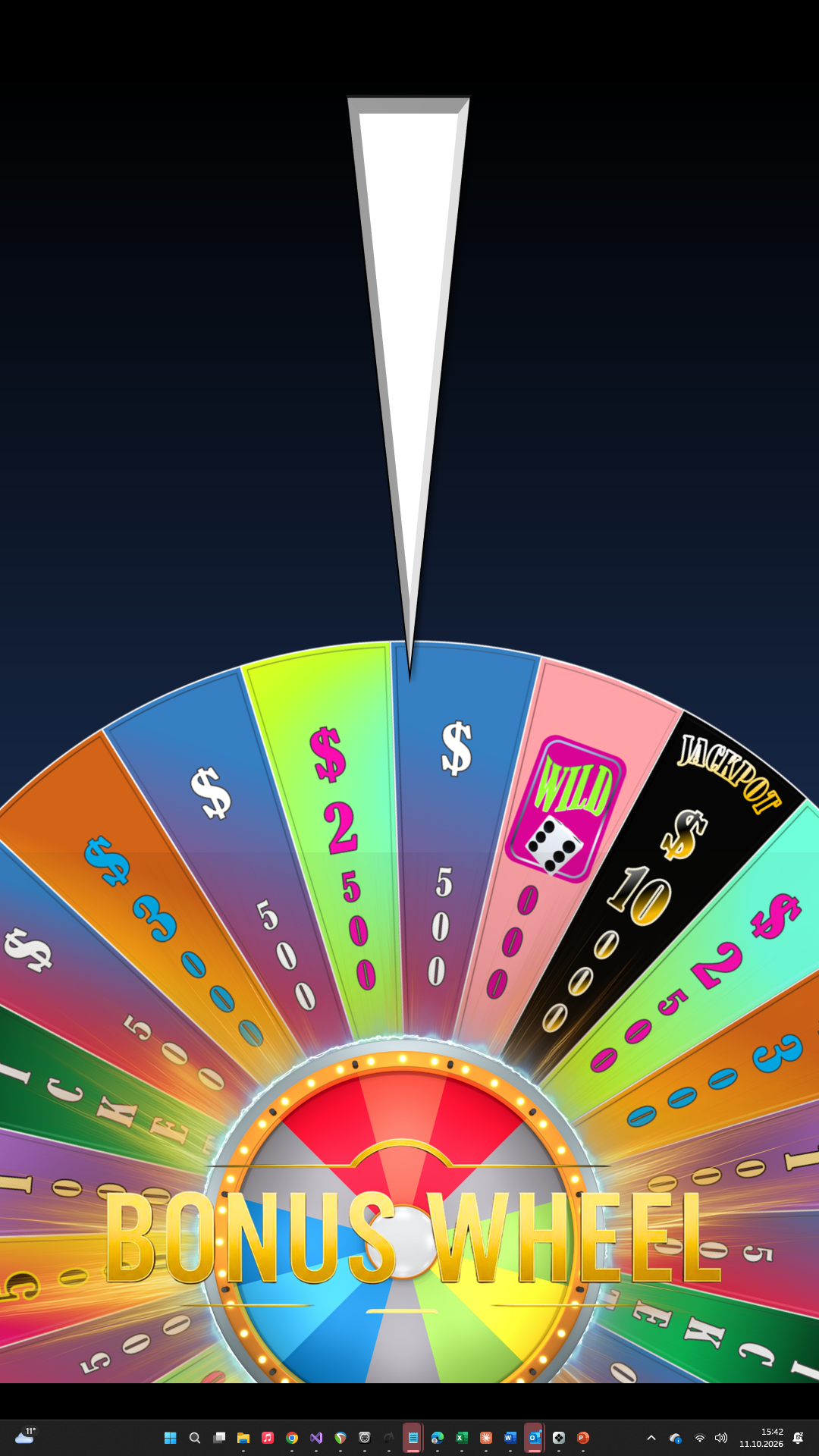
32. Bonus Wheel (Pro)
The Bonus Wheel is a wheel of fortune that you show to your guests. It runs from a PowerPoint presentation and takes over the digital signage while it spins. The wheel buttons are on the game dashboard, in the group BONUS WHEEL.
Preparing the Bonus Wheel#
The Bonus Wheel is a PowerPoint presentation with the extension .pptm. CTM only starts the presentation or brings it to the front, and it picks a random slide by running the macro RandomizeSlideShow in the presentation. Everything else happens inside the presentation: the wheel, the animation, and the sounds of the wheel.
The presentation is meant to come from Hummel Gaming, which offers two versions at hummelgaming.com: the Standard Layout, a ready-to-play wheel with the standard design, and the Individual Layout, with your own logo and field colors, and a freely chosen distribution of the 24 fields. Both include a sound pack. The presentation is fully set up and works together with CTM, so you do not need to configure anything in it.
You need:
- the Pro edition of CTM
- Microsoft PowerPoint
- your Bonus Wheel presentation from Hummel Gaming
Select the presentation file on INIT page 2.
→ See Bonus Wheel and Promo Wheel Files.
You can also use a presentation of your own. It must contain the macro RandomizeSlideShow; what it does beyond that is up to you. Hummel Gaming cannot provide support for presentations it did not create.
To display the progressive jackpot, add text fields named JackpotValue and JackpotHitValue (amount) and JackpotCaption (caption) to your slides. CTM fills them with the current amount and caption and shows *** while the jackpot is off. If the jackpot grows with every wheel start, CTM adds the amount before the wheel starts.
Running the Bonus Wheel#
- Press START BONUS WHEEL. CTM sends the wheel light scene, hides the digital signage, starts the presentation, and brings it to the front. The button reads BONUS WHEEL IS ACTIVE.
- Press the same button again for the next spin. CTM advances the presentation to the next slide and sends the light scene again.
- Press RETURN TO SIGNAGE to show the digital signage again on top of the wheel, for example between two spins. The presentation stays behind it. Press START BONUS WHEEL to continue with the wheel.
- When you are finished, press CLOSE WHEEL. CTM ends the presentation and shows the digital signage again.
While a slide plays sound, CTM lowers the background music until the sounds and videos of the slide have finished.