25. Table History and Filters
The TABLE HISTORY page is where you look back at your games. Use the filters to choose what to analyze, then press the LSK next to GAME PLAY STATISTICS. The button GENERAL STATISTICS is reserved for a future version and currently has no function.
The filters work in combination: a roll counts only if it matches every filter you set. Without any filter, the statistics cover all events, all players, and all dates.
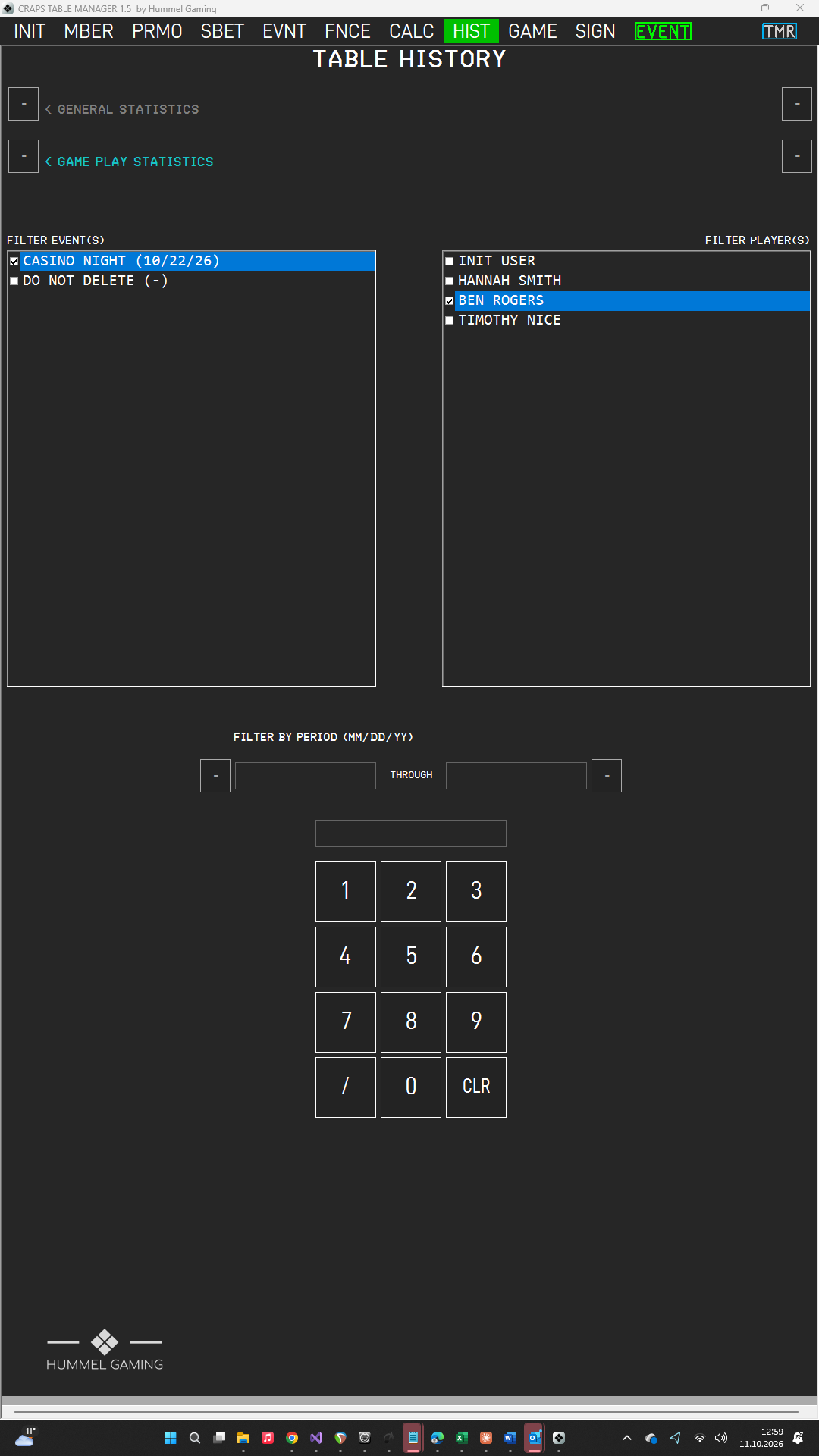
When you leave the page, the ticks in the lists are cleared, while the dates remain until you change them.
Filtering by Event#
FILTER EVENT(S) lists all events, newest first, with the title and the date in your chosen date format. A dash means that the event has no date. Tap an event to tick or untick it. If you tick several events, CTM combines them.
Filtering by Player#
FILTER PLAYER(S) lists all members, including locked ones. Tap a name to tick or untick it. With players ticked, the statistics count only the rolls those players shot and their bookings. If the list is longer than the screen, scroll it with your finger.
Filtering by Date#
The heading FILTER BY PERIOD shows the date format, for example MM/DD/YY. Enter the first and the last day of the period:
- Type the date on the keypad, using the / key as the separator. It works with every date format.
- Press the LSK next to the left box for the first day, or the LSK next to the right box for the last day.
- To empty a box, press CLR on an empty ScratchLine and then the LSK next to the box.
The last day counts in full. If you leave a box empty, the period has no start or no end, respectively.
Opening the statistics. Press the LSK next to GAME PLAY STATISTICS. The GAME STATISTICS sub page opens with your filters applied. Press RETURN to go back and change the filters.