34. Digital Signage
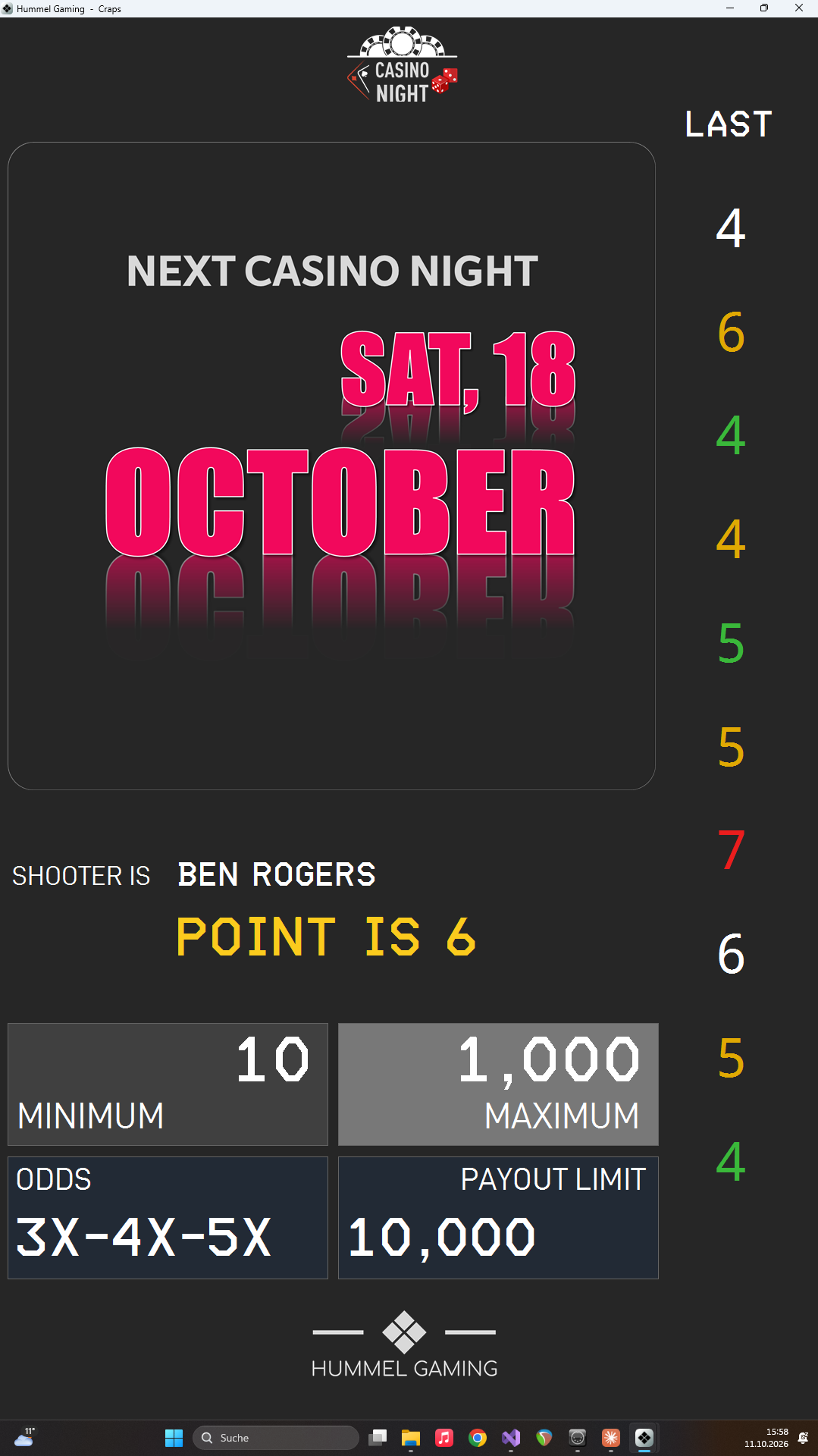
The digital signage is a second screen that shows your guests what is happening at the table: the latest rolls, the shooter, the game state, and your table limits. Between the game information, it plays a slideshow of your own images and videos, such as a menu, sponsor logos, or an event schedule. In the Pro edition, you control it from the TABLE SIGNAGE page, which you open with the page key SIGN.
Setting Up the Second Screen#
Connect the second display and configure it in Windows before you open the digital signage. CTM shows the digital signage on that screen. If only one screen is connected, CTM uses it, so you can test everything on a single monitor.
What Your Guests See#
The digital signage combines several elements, all of which update automatically while you record the game:
| Element | What it shows |
|---|---|
| Header and footer | Your header image at the top and your footer image at the bottom. |
| Slideshow | Your images and videos, in the large panel at the upper left. |
| LAST | The most recent rolls, newest at the top, in the same colors as on the game dashboard. |
| SHOOTER IS | The name of the current shooter. |
| Game state | COME OUT ROLL, POINT IS, POINT WON, or SEVEN OUT, in the colors of the dashboard. |
| MINIMUM, MAXIMUM, ODDS, PAYOUT LIMIT | The table limits of the active event. |
| Background | An image of your choice behind everything else. |
| JACKPOT (Pro) | The current jackpot amount with its caption. It shows *** while the jackpot is off. |
The display needs an active event to show the shooter, the game state, and the table limits.
Starting the Slideshow#
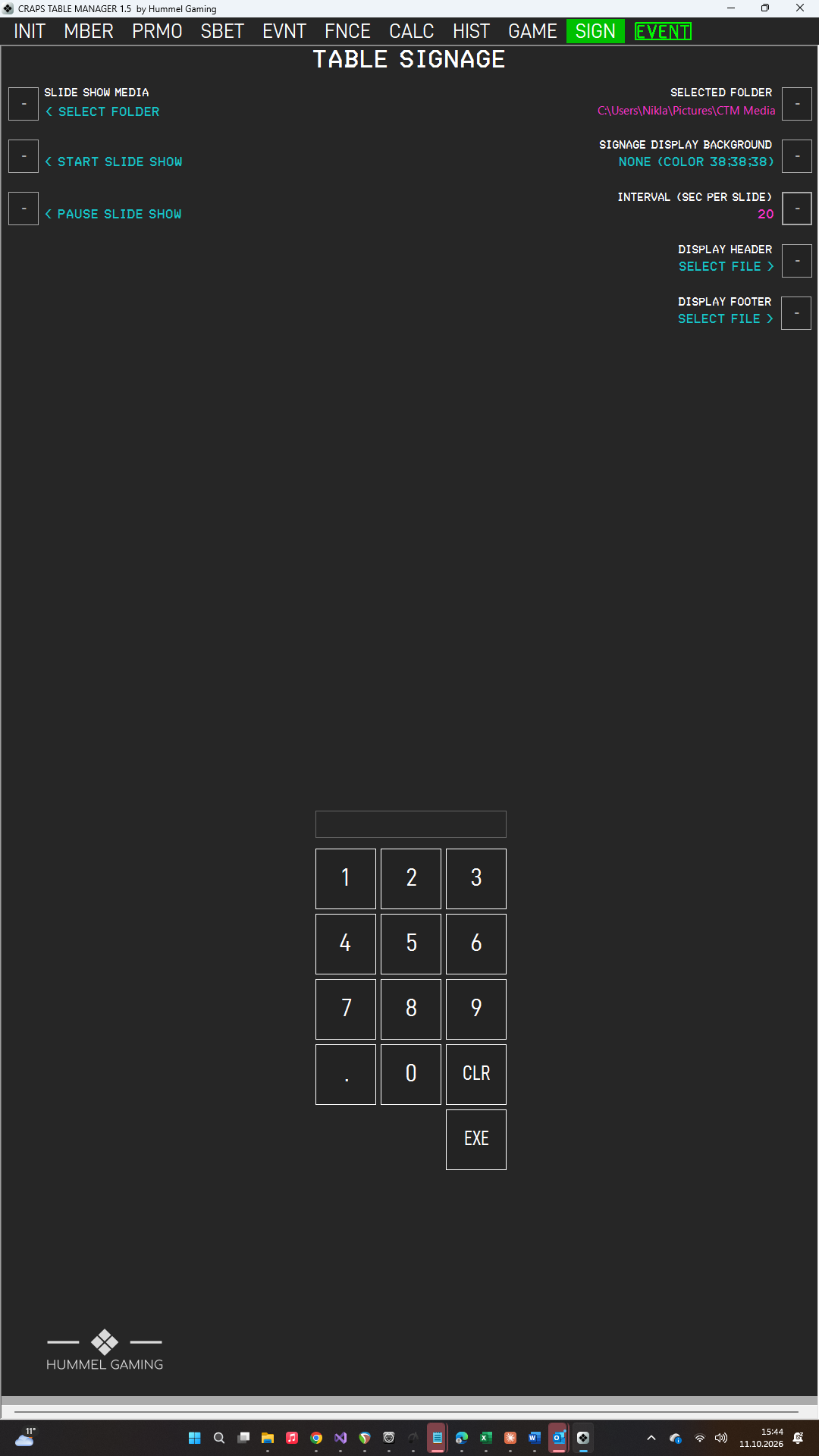
- Press the LSK next to SELECT FOLDER and choose the folder that contains your images and videos. The folder is displayed under SELECTED FOLDER. You can also choose it on INIT page 2.
- Optionally, set the INTERVAL (SEC PER SLIDE): type the number of seconds on the keypad and press the LSK next to the data field.
- Press the LSK next to START SLIDE SHOW. The digital signage opens on your second screen, and the slideshow begins.
- To pause the slideshow, press the LSK next to PAUSE SLIDE SHOW. Press START SLIDE SHOW to continue.
Images remain on screen for the interval you set. A video plays to its end before the next slide appears.
Header, Footer and Background#
Three settings on the right side of the page control the look of the digital signage:
- DISPLAY HEADER: Press the LSK and choose an image file (JPG or PNG, for example your event logo). It appears at the top of the digital signage.
- DISPLAY FOOTER: Press the LSK and choose an image file (JPG or PNG). It appears at the bottom of the digital signage.
- SIGNAGE DISPLAY BACKGROUND: Press the LSK to choose the image (JPG, PNG, or BMP) that fills the background. If a background image is already set, CTM asks whether to remove it. The data field shows the name of the current file.
Files named header, footer, closed, and jackpotlogo in the media folder have a special meaning: CTM uses them automatically as header, footer, closed screen, and jackpot winner logo, and they do not appear as slides. A file that you choose with the LSKs above replaces the one from the folder.
The Closed Screen#
When you press CLOSE TABLE on the game dashboard, the digital signage covers everything with the closed screen and pauses any running video. The slideshow stays where it is and continues when you press OPEN TABLE.
→ See Closing and Reopening the Table.
To display your own graphic, name it closed and place it in the media folder.

Preparing Images and Videos#
- File types: Use JPG or PNG for images and MP4 for videos.
- Resolution: Use high-resolution files. Guests view the display from a distance, so avoid small text and fine detail.
- Consistency: Prepare all slides in the same proportions so that they fill the slideshow panel evenly.
- Sound: Videos play with sound through the computer's audio output.